Scene Design
Zones and Interactive Areas
Draw areas on a scene and turn them into navigation, actions, displays, collections, or walkable regions.
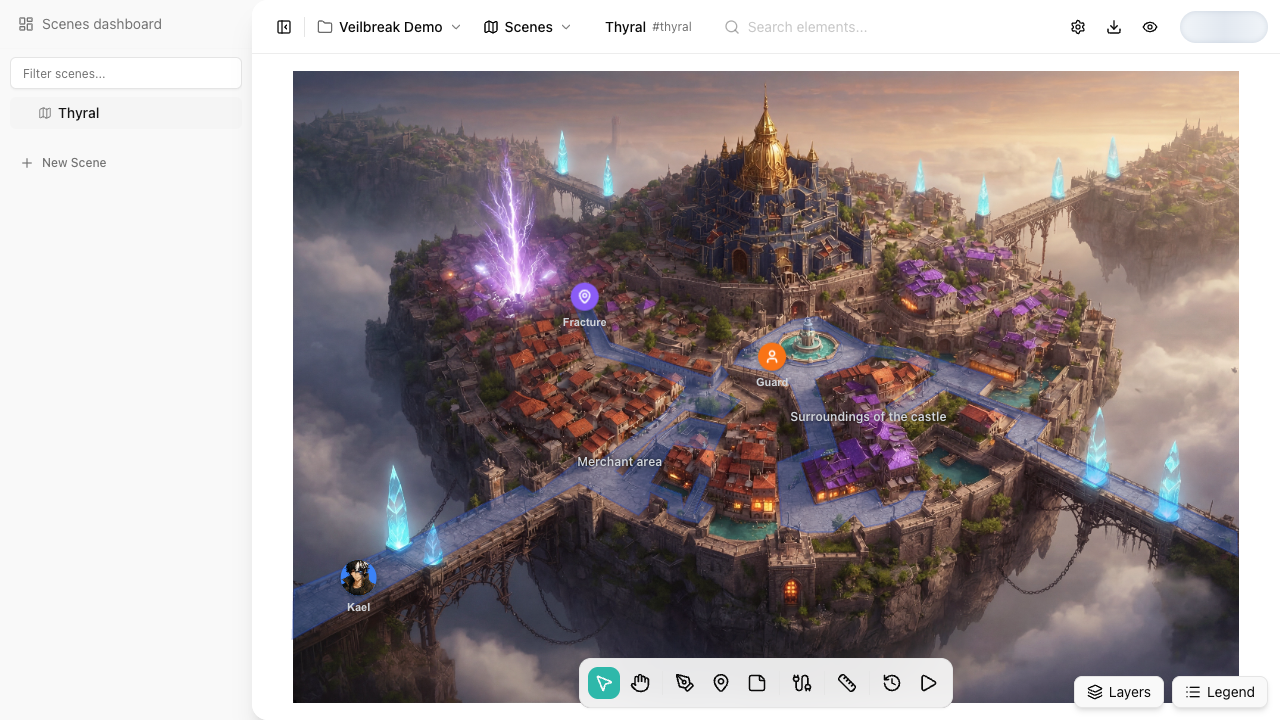
Zones are polygonal regions drawn on top of a scene. In the editor they mark parts of the map; in exploration mode they can behave as map buttons, walkable areas, variable displays, or item collections.
Drawing zones
| Tool | Use it for |
|---|---|
| Rectangle | Rooms, buildings, interface-like panels inside the map |
| Triangle | Directional markers, points of interest, map wedges |
| Circle | Areas of influence, camps, approximate radii |
| Freeform | Irregular rooms, paths, terrain boundaries |
Zone vertices are stored as percentages relative to the scene dimensions. This keeps zones aligned if the background image or view size changes.
Double-click a zone to edit its vertices. Drag the edit points to reshape the area, then confirm the change when the zone needs to follow the map artwork more closely.
Zone types
The type picker defines what the zone does in exploration mode:
| Type | Use |
|---|---|
| Action | Creates an interaction: it can run instructions, open a scene, launch a flow, or combine several of these. Use it for doors, points of interest, map buttons, and simple state changes. |
| Walkable Area | Marks where the player can move in exploration mode. |
| Display | Shows the current value of a variable on the map. It can show either value only or name + value. |
| Collection | Opens a collection window with collectible items. Each item can have its own condition and instructions when collected. |
Use Walkable Area to define where the player can move. Use Action for map points that should respond to clicks with navigation, instructions, or flows.
Properties panel
Zone properties are organized into tabs:
| Tab | What it controls |
|---|---|
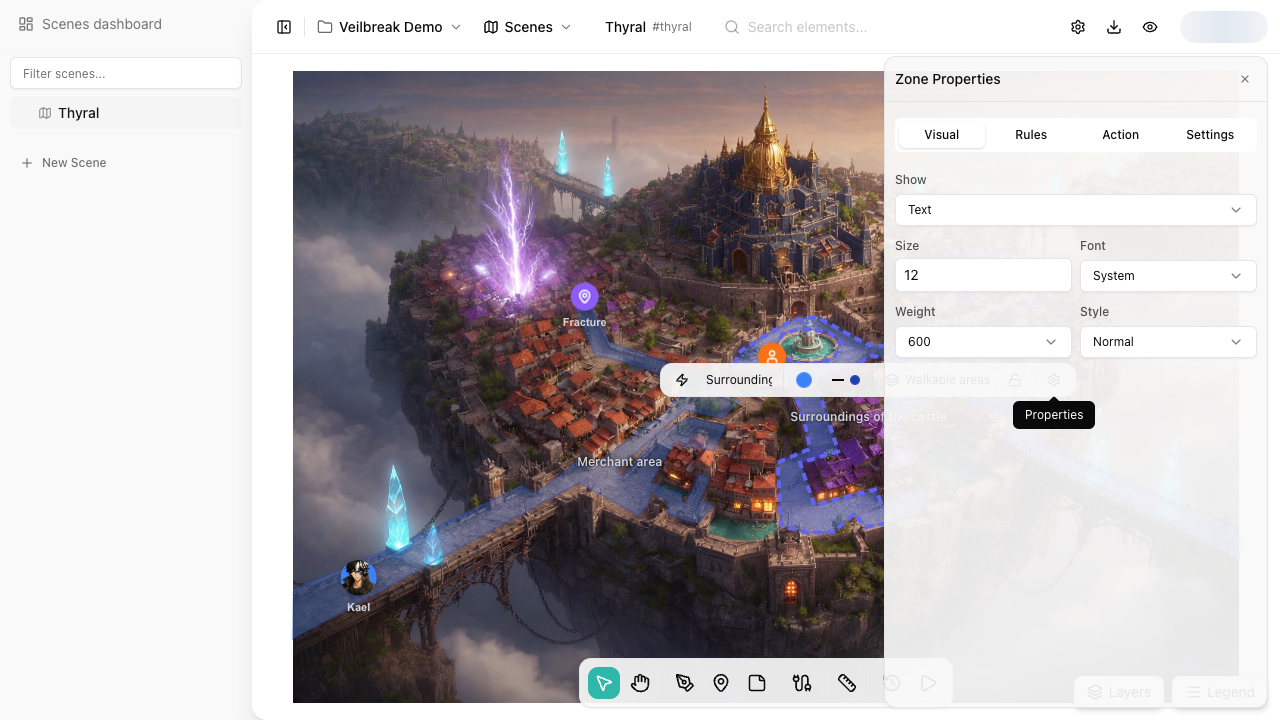
| Visual | Text, icon, displayed variable, size, font, weight, and style. |
| Rules | Availability condition and the effect when the condition is not met. |
| Action / Movement / Collection | Type-specific behavior. |
| Settings | Shortcut, hidden-in-exploration state, and tooltip. |
Visual
Action, Collection, and Walkable Area zones can show:
- Text – shows the zone name.
- Icon – shows a user-uploaded icon.
- Text and icon – shows both.
- Nothing – hides the label in exploration mode, while the editor still shows the zone name so you can find it.
Icons can be SVG, PNG, or GIF and at most 256 KB.
For Display zones, select the variable to show and choose whether the map renders the value only or name + value. Size and font settings affect the value shown in exploration mode.
Rules
Each zone can have a condition built with the shared Condition Editor. When the condition is not met, choose an effect:
- Hide – the zone disappears from exploration mode.
- Disable – the zone remains visible, but is locked.
Use this for locked doors, revealable routes, contextual displays, collections that appear later, or interactive points that depend on game state.
Action
An Action zone can:
- Navigate to a scene.
- Launch a flow on top of the scene.
- Run instructions with the shared Instruction Editor.
- Combine navigation and instructions.
For an Action to have an effect in exploration mode, configure navigation, instructions, or both.
Walkable Area
Walkable Area zones define where the party leader can move in exploration mode. Movement uses the zone polygon: if you click outside every visible walkable area, movement is blocked.
Walkable areas are highlighted in green when zone visibility is enabled in exploration mode.
Display
Display zones show a variable on the map. Use them for in-world interface, counters, visible stats, or labels driven by state.
When a numeric variable has no useful decimal part, Storyarn renders it as an integer to avoid visual noise.
Collection
Collection zones open a collection window. Each item can point to a sheet, have a label, evaluate its own condition, and run instructions when collected. You can also enable Collect all and define the message shown when no items are visible.