

Scene Design
Connections and Routes
Connect pins with paths, labels, direction, line styles, waypoint editing, and patrol routes.
Connections are route lines on the scene. Use them to show paths, travel links, patrol routes, trade routes, relationships, quest dependencies, or any association that benefits from being visible on the map.
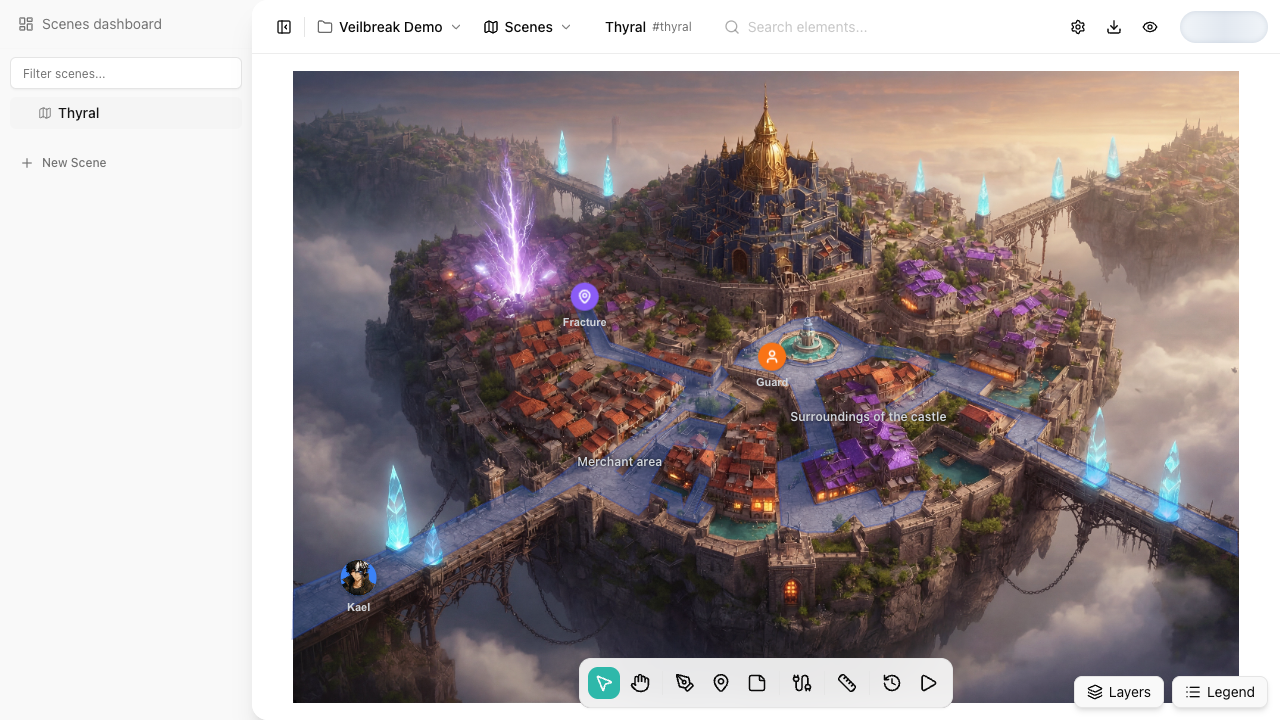
Creating Connections
Use the connector tool from the scene dock. A route can connect pins, free points on the map, or one pin and one free point.
- Click the pin or map point where the route starts.
- Click the pin or map point where the route ends.
- Press Escape to cancel while drawing.
When a route is attached to a pin, that end follows the pin if it moves. If you click directly on the map, that end becomes a free route point and stays where you placed it. A route cannot connect a pin to itself.
Appearance
Select a connection to edit its visual style from the floating toolbar.
- Label names the route or relationship.
- Show label controls whether the label appears on the line.
- Color, width, and line style help separate main paths, optional paths, and non-physical relationships.
- Bidirectional controls whether the connection has arrows in both directions or only from origin to destination.
Direction
| Direction | Meaning |
|---|---|
| Bidirectional | The route or relationship works both ways. Patrol routes can traverse it in either direction. |
| One-way | The route or relationship has a single direction, from the first point to the last point. |
Use direction when the connection needs to communicate intent: a one-way path, a dependency, a patrol order, or a relationship that should be read from one side.
Waypoints
Waypoints bend a connection around map features. Add intermediate points when a route should follow a road, corridor, coastline, or designed path instead of drawing a straight line.
Double-click a connection to edit its path:
- Click a midpoint handle to add a waypoint.
- Drag a waypoint handle to reshape the route.
- Ctrl-click or Cmd-click a waypoint handle to remove it.
- Use Straighten path in the side panel to make the route direct. Free routes keep their start and end points.
A route always keeps at least two points. If the route is not anchored to pins, its free endpoints are kept as route points so the route remains valid.
Keep routes readable. Too many waypoints can make editing harder; use enough to communicate the path and no more.
Stops
Pins and waypoints on a route can be configured as stops. Use stops when a patrol should pause at a guard post, checkpoint, door, harbor, road fork, or any point that matters in the route.
The side panel lets you mark the start pin, end pin, and individual waypoints as stops and set a pause duration for each one. On routes with free endpoints, those endpoints appear as route points and can also be used as stops.
Patrol Routes
Connections can also define the path for a non-playable pin with patrol enabled. The patrol starts at that pin, follows connected route points in order, and includes any waypoints between pins or free points.
Intermediate waypoints shape movement and can optionally be stops.
What connections do not do
Connections explain routes and relationships on the map. They do not run instructions, open flows, or navigate to scenes by themselves. If a route should become locked, hidden, or change state during exploration, configure that logic on the related elements: conditions on pins or zones, and actions when the behavior belongs to a zone.