

Quick Start
Create a Workspace
Set up your workspace and create your first project in under 5 minutes.
A workspace is your team’s home base. It holds all your projects and controls who has access to them.
This Quick Start builds one small, complete project path:
- Create a workspace and project.
- Create a character sheet with variables.
- Use those variables in a branching flow.
- Test the flow in Debug Mode and play it in the Sequence editor.
- Export the project so it can move into your production pipeline.
Create your workspace
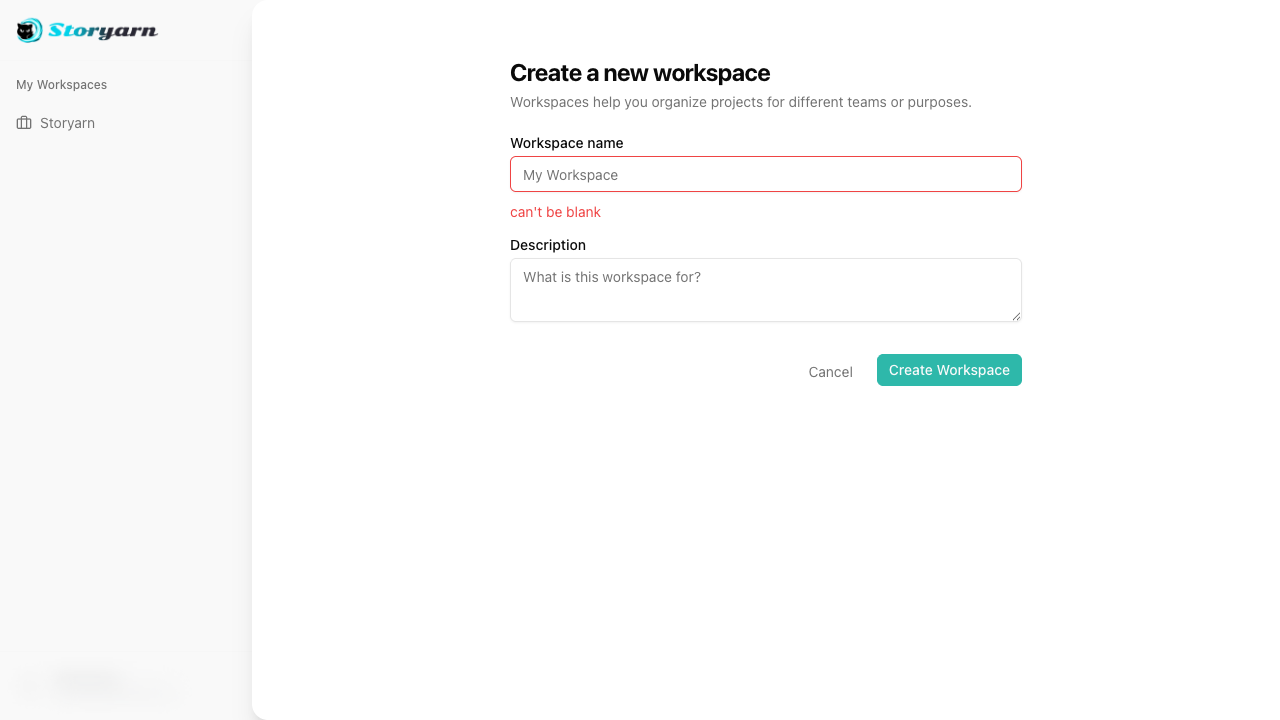
After signing in, you will be redirected to your default workspace. If you don’t have one yet, you will land on the Create a new workspace page.
Fill in the workspace name and an optional description. A URL slug is generated automatically from the name. Click Create Workspace to proceed.
Create a project
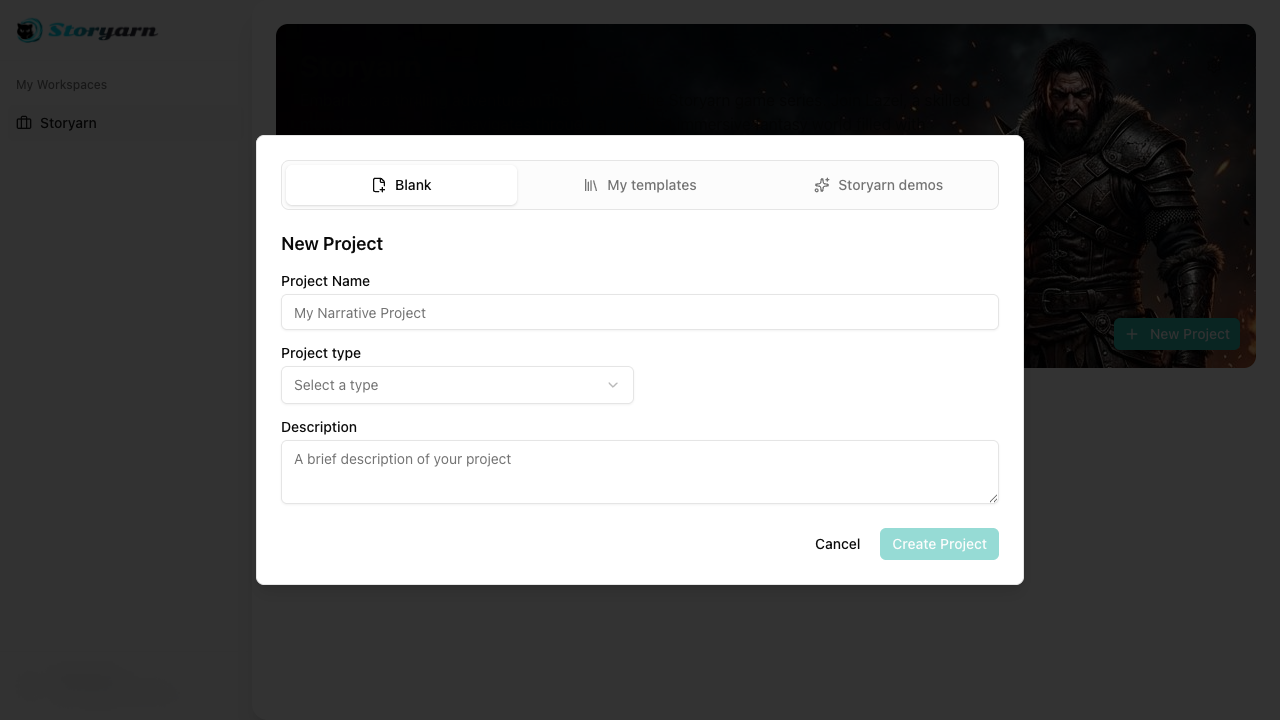
From the workspace dashboard, click the New Project button in the top-right toolbar. The project dialog lets you start from a blank project, one of your templates, or a Storyarn demo, then enter a Project Name and optional Description.
Each project is fully isolated with its own sheets, flows, scenes, localization, and assets. One workspace can hold as many projects as you need.
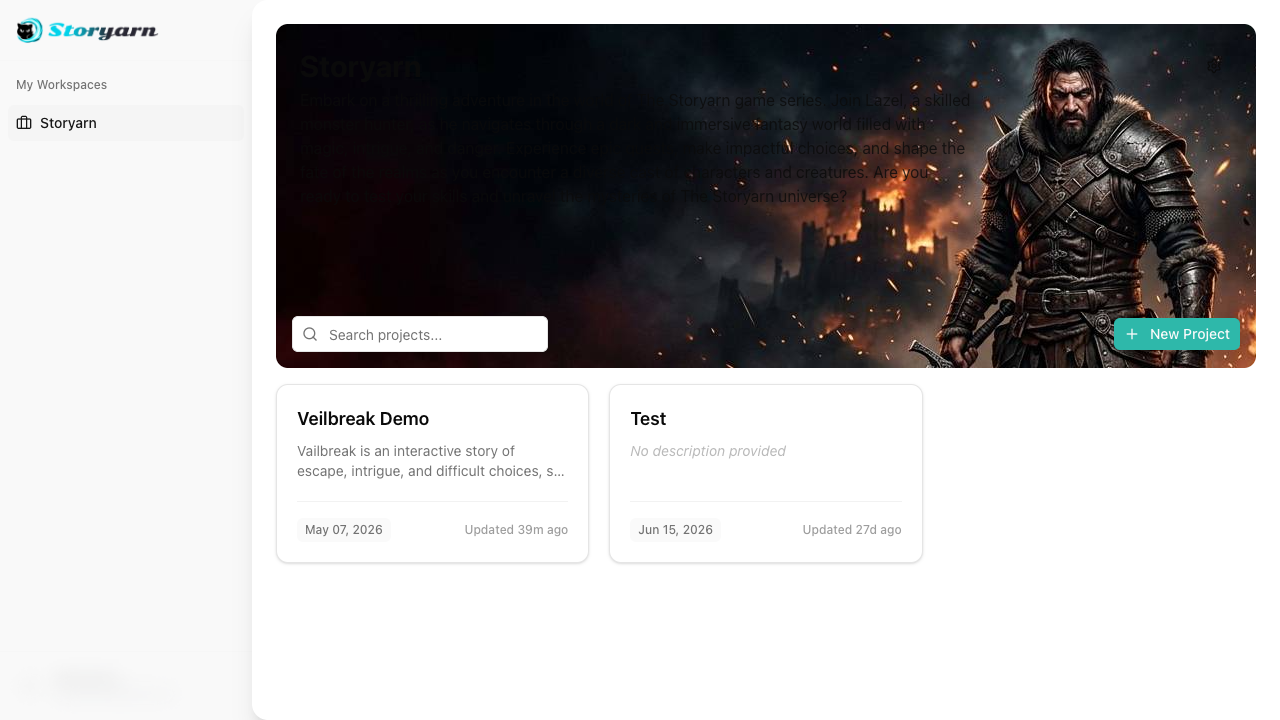
After creation, you are taken to the project dashboard. Open Sheets from the project sidebar to continue.
For this tutorial, stay in the new project and continue with Your First Sheet. You will create the character data that the flow reads in the next step.
Invite your team
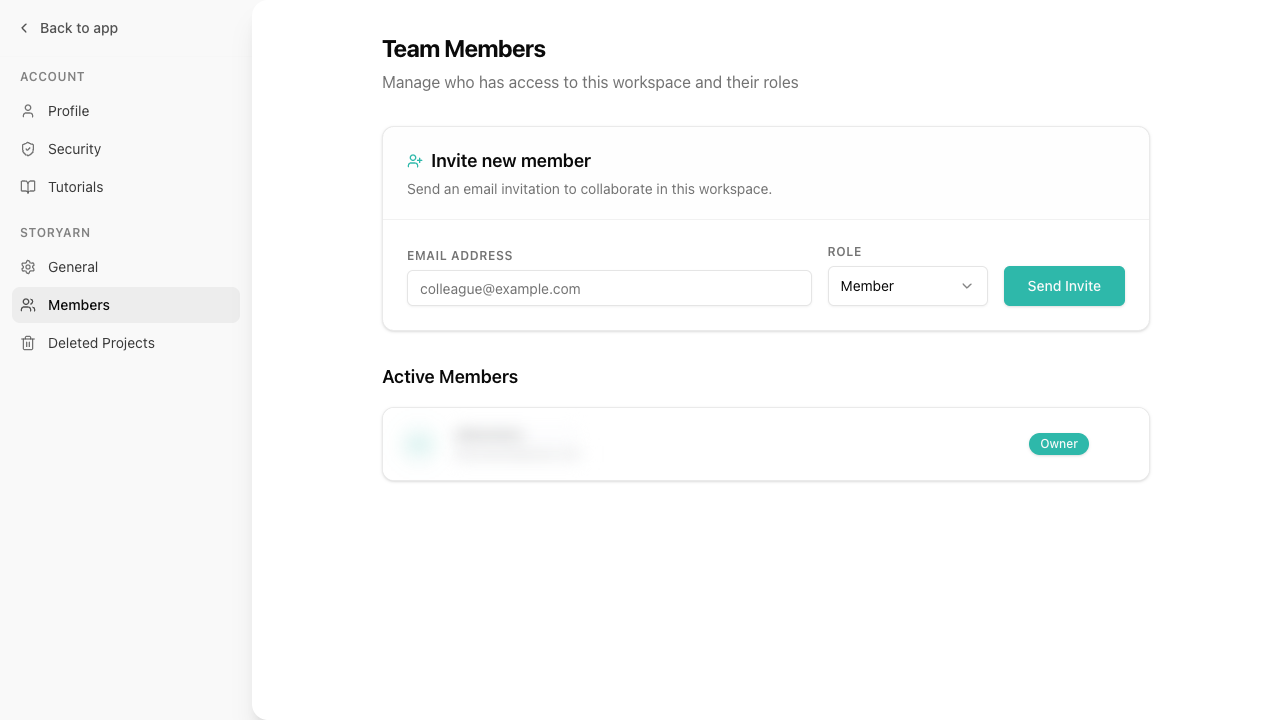
Go to Settings > Workspaces > [Your Workspace] > Members and click Invite. Enter an email address and choose a role:
- Owner – full control, including deletion
- Admin – manage members, create and delete projects
- Member – edit content in projects they have access to
- Viewer – read-only access everywhere
Invitations expire after 7 days and can be revoked anytime.
Project-level access
Within each project, you can further refine permissions. A workspace Member can be an Editor on one project but a Viewer on another. Project roles are:
- Owner – full project control
- Editor – create and edit all content
- Viewer – read-only access
Manage project members from the project’s Settings page.