

Scene Design
Pins
Place point markers for characters, locations, events, sheets, flows, playable characters, and patrols.
Pins are point markers placed on a scene. Use them for exact positions: a character, an entrance, a quest object, a point of interest, an event, or a custom reference.
Pin types
| Type | Typical use |
|---|---|
| Location | Places, landmarks, doors, exits, map labels |
| Character | NPCs, party members, enemies, social encounters |
| Event | Timed events, quest beats, triggers |
| Custom | Project-specific marker types |
The type helps the map stay readable and changes the default icon, but it does not decide what happens during exploration.
Creating pins
Create a free pin from the dock, or create a pin from a sheet when the marker should point to an existing character, item, location, or world entity.
Sheet-linked pins keep the scene connected to world data. If the sheet has an avatar, the pin can use it as its image; if it does not, Storyarn shows a simple visual marker so the element remains recognizable.
Visual
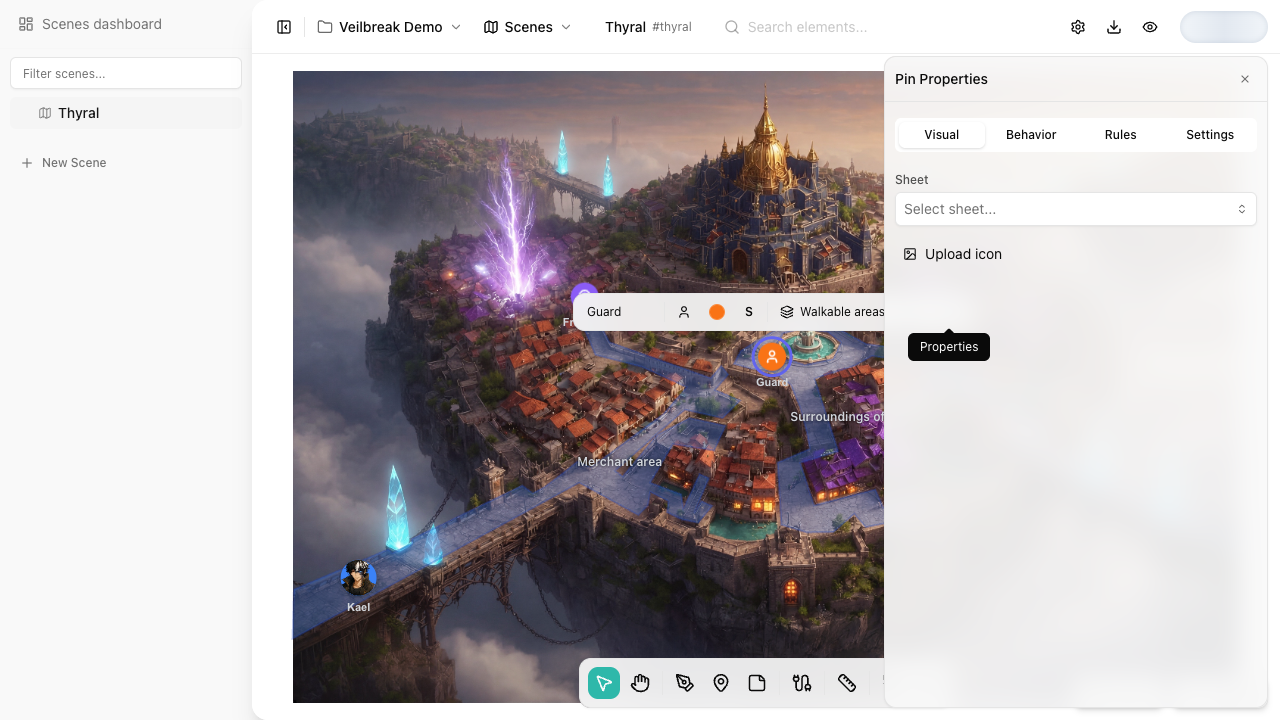
The pin’s basic appearance is edited from the element toolbar:
- Label names it on the map.
- Type separates locations, characters, events, and custom markers.
- Color, opacity, and size create visual hierarchy.
- Layer groups visibility with the rest of the scene.
- Lock prevents accidental edits.
In the side panel, the Visual tab lets you attach a sheet and upload a custom icon. Use lightweight SVG, PNG, or GIF icons when the pin should represent a specific UI or world element.
Behavior
The Behavior tab controls what the pin does in exploration mode.
- Flow assigns a flow that opens on top of the scene when the pin is clicked.
- Playable character makes the pin part of the controllable party.
- Party leader marks which playable pin receives the main movement.
- Patrol lets a non-playable pin move along connections between pins.
A pin without a flow can still work as a visual marker, playable character, or patrol, but it is not a clickable dialogue point during exploration.
Rules
The Rules tab controls when the pin appears or becomes blocked during exploration.
- Hidden in exploration hides the pin in exploration mode while keeping it visible in the editor.
- Condition uses the shared Condition Editor.
- Hide hides the pin when the condition is not met.
- Disable keeps the pin visible but blocks interaction.
Use these rules for NPCs that appear later, unlockable points of interest, temporarily unavailable characters, or routes that depend on game state.
Settings
The Settings tab contains supporting data:
- Shortcut, when present, lets conditions and instructions reference the pin.
- Tooltip shows a short hint when hovering the pin.
Pins or zones
Use pins for point elements: characters, doors, objects, markers, and route stops. Use zones when you need an area: a clickable region, a walkable area, a collection, a variable display, or a shaped surface.