

Localization
Localization Overview
Translate your project into multiple languages with extraction, DeepL, review, and reporting.
Storyarn’s localization system gives you control over the player-facing text sent to engine exports – from dialogue lines and response options to sheet names and textual runtime variables. It handles automatic text extraction, machine translation via DeepL, voice-over tracking, and detailed progress reports.
How it works
The localization workflow has four stages, each designed to minimize manual effort while keeping translators in control.
1. Set up your languages
Open Localization in your project sidebar. If the project has no source language yet, Storyarn initializes it from the workspace default. The source language is shown in the sidebar, where the project owner can change it; changing it resets every translation. Add target languages from a curated list of 45 supported languages covering major game localization markets – from English, Spanish, and Japanese to Arabic, Thai, and Chinese (Simplified/Traditional).
2. Extract translatable content
Click Sync to reconcile localization with the project’s current runtime export contract. The extractor pulls content from three source types:
| Source | What gets extracted |
|---|---|
| Flow nodes | Dialogue text, stage directions, menu text, individual response texts, and exit labels |
| Sheets | The name of each active sheet, used as a runtime actor or speaker name |
| Blocks | value.content from active, non-constant text or rich-text blocks that have a non-empty runtime variable name |
Scenes are not part of localization. Flow names and descriptions, sheet descriptions, and editor metadata such as block labels, placeholders, and option labels are also excluded because they are not emitted as player-facing text by the engine export contract.
Each extracted text gets a SHA-256 hash of its source content. When you re-sync, Storyarn detects changes – if the source text has been modified since the last translation, the system can flag it for re-translation. Extraction is idempotent: running it multiple times never creates duplicates thanks to upsert logic.
Dialogue nodes also track the speaker sheet ID, so reports can break down word counts by character.
3. Translate
You have three paths to get translations done:
Manual editing – Open any text entry to edit the translation directly. Best for creative adaptation, cultural nuances, and final polish.
DeepL integration – Connect your DeepL API key in project settings to unlock machine translation. You can translate a single entry (click the sparkle icon) or batch-translate all pending texts for a language with one click.
Under the hood, DeepL translation is HTML-aware: rich text from dialogue nodes is sent with tag_handling: "html" so formatting is preserved. Variable placeholders like {character_name} are wrapped in <span translate="no"> before sending, then unwrapped after – so they come back untouched. Batch requests are chunked into groups of 50 texts (DeepL’s per-request limit).
Round-trip with external translators – Download an Excel (.xlsx) or CSV file filtered by language, status, or source type. Send it to your translation team, keep the ID column unchanged, and preserve the Source Hash column so Storyarn can reject rows whose source changed after export. The Import CSV action accepts the returned CSV and updates the matching translations and statuses.
4. Review and finalize
Every text entry follows a five-stage workflow:
| Status | Meaning |
|---|---|
| Pending | Extracted but not yet translated |
| Draft | Machine-translated or first pass complete |
| In Progress | Translator is actively working on it |
| Review | Translation complete, awaiting review |
| Final | Approved and ready for export |
Machine translations are automatically set to Draft status. If the source text changes after translation, the system can detect the hash mismatch for re-review.
Translation workflow table
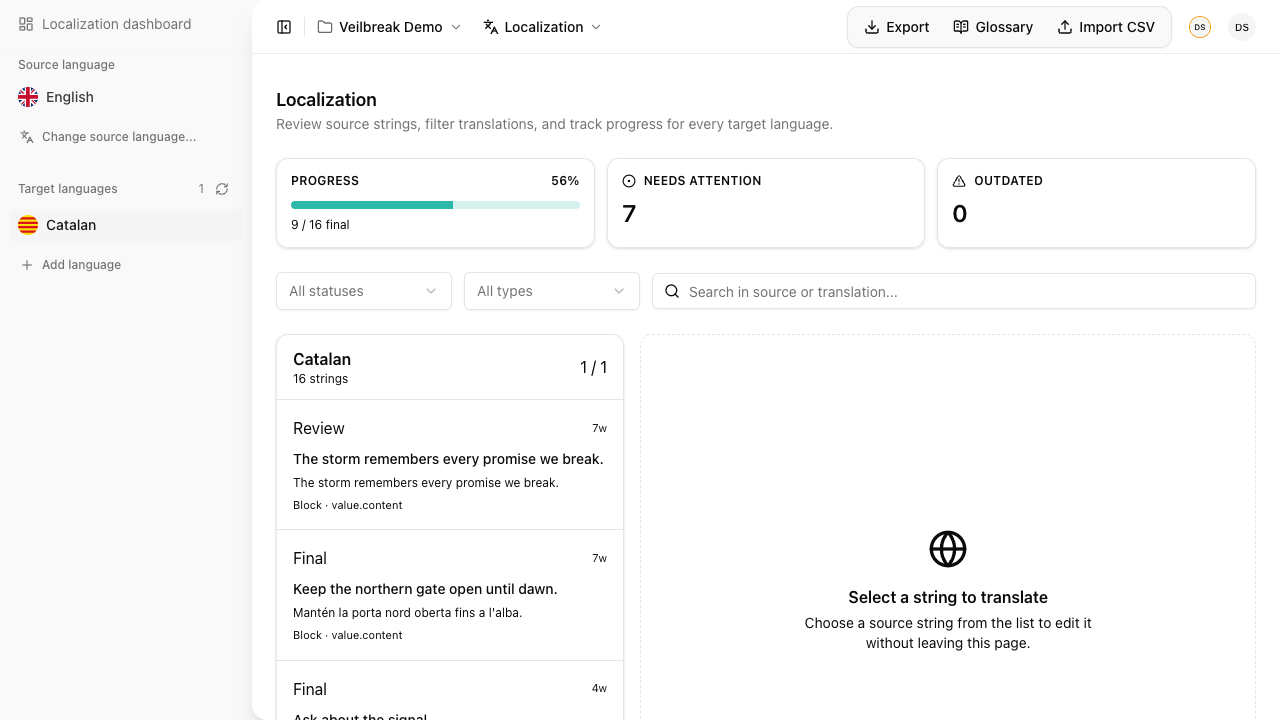
Filter the translation table by language, status, and source type. Search across both source and translated text. The table is paginated (50 entries per page) and shows:
- Source type icon (flow node, block, or sheet)
- Source text (HTML-stripped for preview)
- Current translation with a “MT” badge if machine-translated
- Status badge
- Word count
DeepL configuration
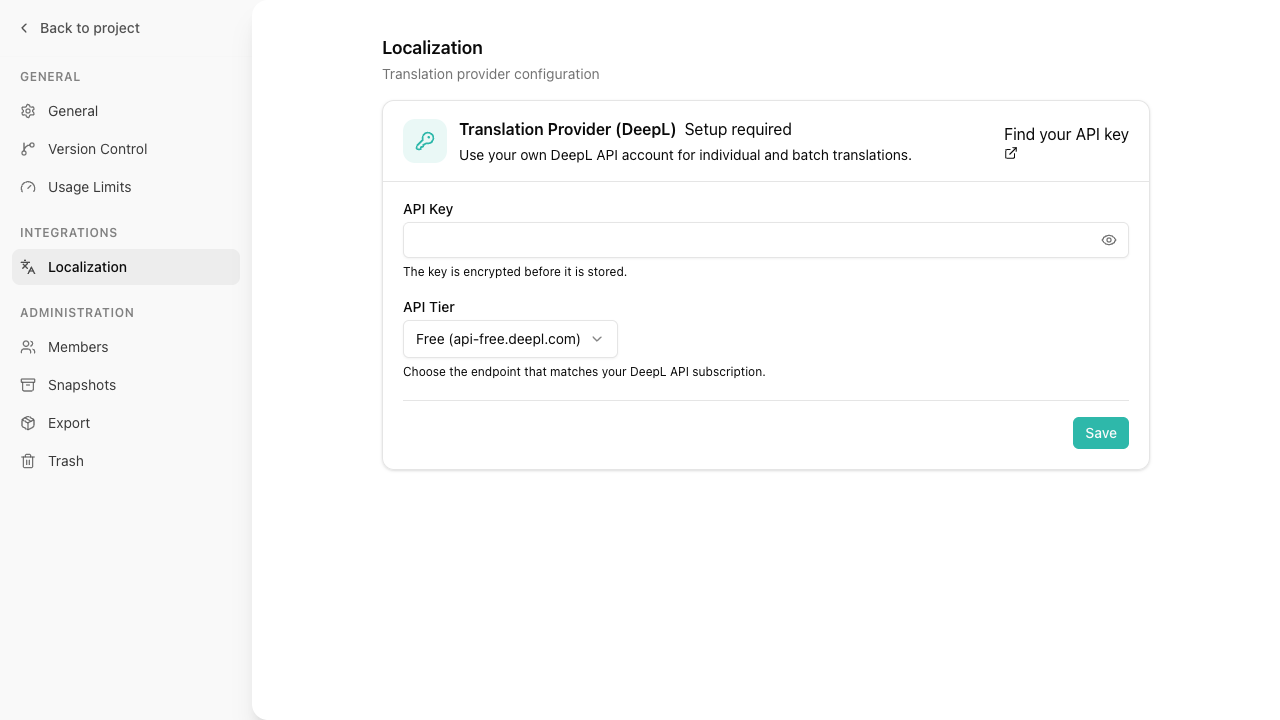
Open Project Settings > Localization to enter a DeepL API key, choose the Free or Pro API tier, test the connection, and review provider usage. Saving a provider enables individual and batch translation actions in the Localization workspace.
Open Glossary from the Localization toolbar to maintain source and target terms, contextual notes, and terms that must not be translated. With an active DeepL provider, you can synchronize the glossary for the selected language pair and use it during machine translation.
Reports
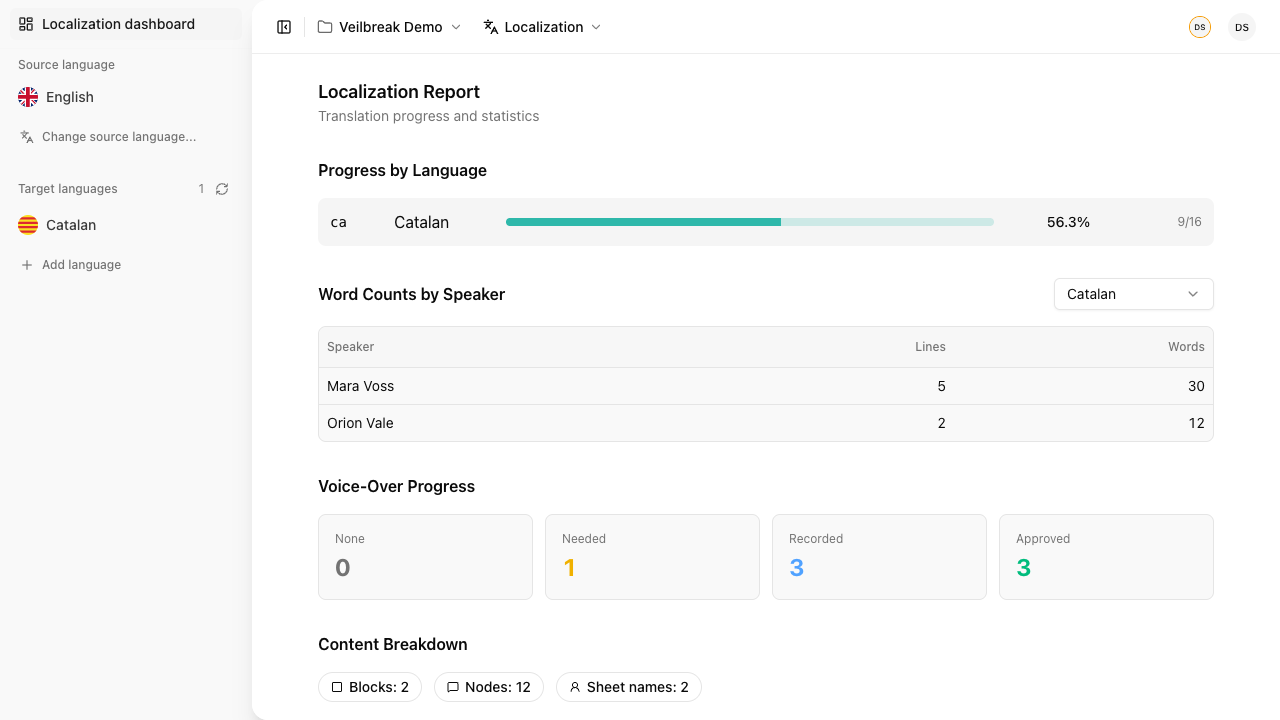
The localization report gives you a bird’s-eye view of your translation progress. It provides four types of data:
Progress by language – For each target language, see the total number of text entries, how many have reached “final” status, and the completion percentage.
Word counts by speaker – For any given language, see how many words and lines each character (speaker sheet) has. Useful for estimating voice-over recording time and cost.
Voice-over progress – Track VO status across four stages: none, needed, recorded, and approved. Each text entry from dialogue nodes has its own VO status independent of the translation status.
Content breakdown – See how many text entries come from each source type (flow nodes, blocks, and sheets) for a given language.
Exporting translations
Export – Download translations as Excel (.xlsx) or CSV, filtered by language. The export includes: ID, source type, source ID, source field, locale, source text (HTML-stripped), translation, status, word count, machine-translated flag, and translator/reviewer notes (Excel only).
The exported ID column identifies the existing localized-text row. Keep it unchanged when exchanging files with translators. For the safest round-trip, also preserve Source Hash: CSV import validates it and reports stale rows instead of applying translations to source text that has changed. Imports are limited to 5 MB and can update the Translation and Status columns.