

Scene Design
Scenes Overview
Map your world with spatial canvases, zones, pins, connections, layers, and exploration.
Scenes are spatial canvases for mapping a project’s world. Use them for world maps, level layouts, location hierarchies, interactive exploration maps, and narrative spaces that need more than a linear flow graph.
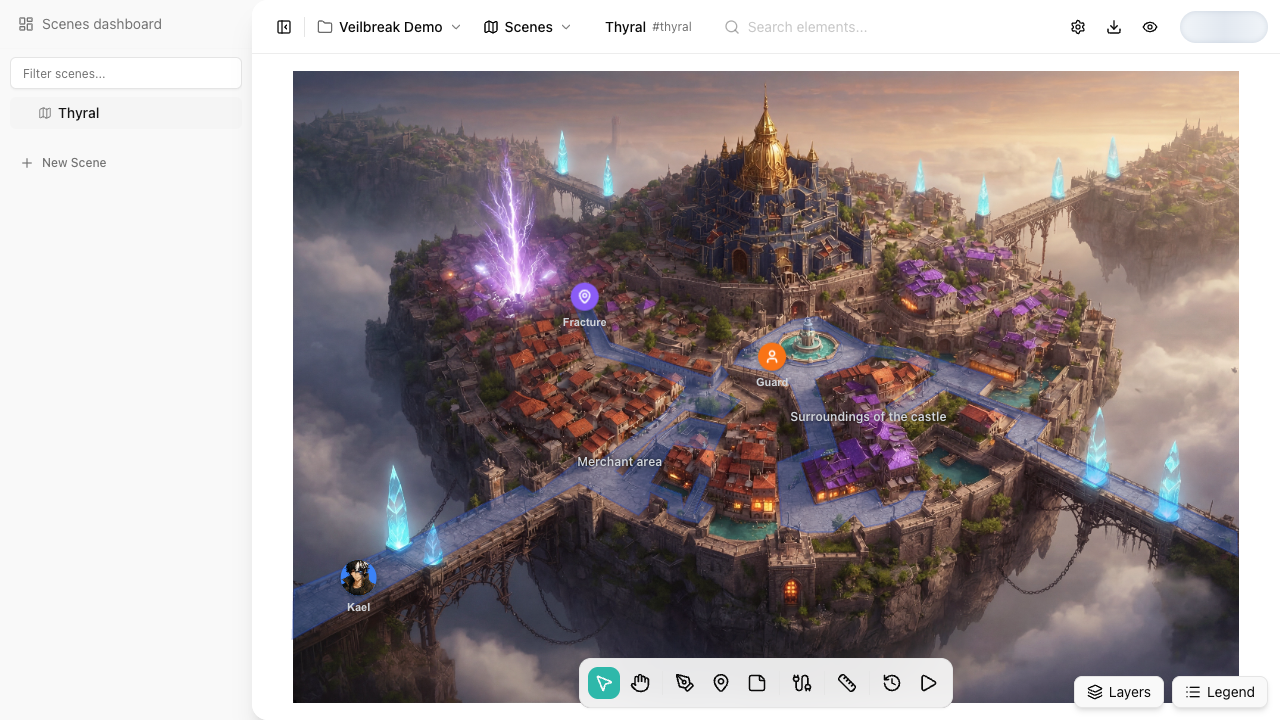
Core pieces
| Piece | What it does | Read next |
|---|---|---|
| Zones | Polygonal areas on the canvas. Use them for rooms, regions, interactable areas, child-scene drill-downs, and conditional access. | Zones and Interactive Areas |
| Pins | Point markers for locations, characters, events, objects, or custom map references. | Pins |
| Connections | Lines between pins. Use them for paths, routes, travel links, or relationships. | Connections and Routes |
| Layers | Visibility groups for organizing canvas elements and reviewing fog overlays over the scene. | Layers and Visibility |
| Exploration | A fullscreen player-like mode that evaluates actions, conditions, and flows opened on top of the scene. | Actions, Conditions, and Exploration |
When to use scenes
- World maps – continents, regions, towns, or dungeon maps.
- Level design outlines – room layouts with navigable connections.
- Location hierarchies – drill down from a world map into regions, buildings, or rooms.
- Interactive exploration – let users click map elements, evaluate conditions, change variables, and trigger flows.
Editor model
Scenes use percentage-based coordinates, so elements stay aligned as the canvas scales. The editor has a bottom dock for drawing and selection tools, a side panel for advanced properties, and a tree/sidebar structure for organizing scenes. A scene tree can be up to 100 levels deep. Storyarn won’t create, move or restore a scene below level 100, and tells you why.
Each scene can have a background image, shortcut, scale settings for measurement, child scenes, layers, and exported PNG/SVG snapshots.