

Quick Start
Your First Flow
Build a branching dialogue that reacts to character stats.
Flows are where your narrative comes to life. In this guide you will build a short dialogue that branches based on the character sheet from the previous guide, then preview and export the result.
Create the flow
Select Flows in the sidebar and click New Flow. Rename it to “Tavern Encounter”.
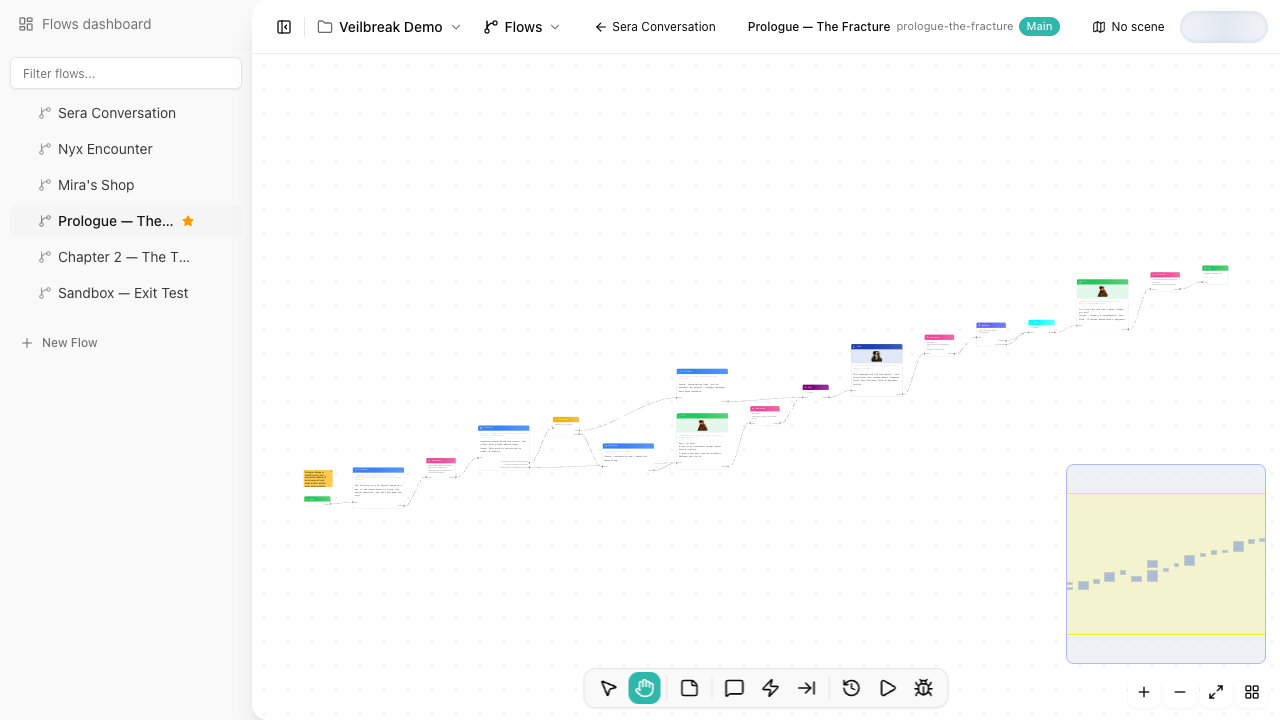
The canvas opens with an Entry node already placed – this is where execution begins.
Add a dialogue node
Click the Add Node button in the top-right toolbar and select Dialogue. A new node appears on the canvas.
Connect the Entry node’s output to the Dialogue node’s input by dragging from one port to the other.
Select the Dialogue node and type the NPC’s line directly on the node (double-click or press E to start inline editing):
“You look like you’ve been through a lot, traveler.”
Add a condition
Add a Condition node from the toolbar and connect it after the Dialogue node.
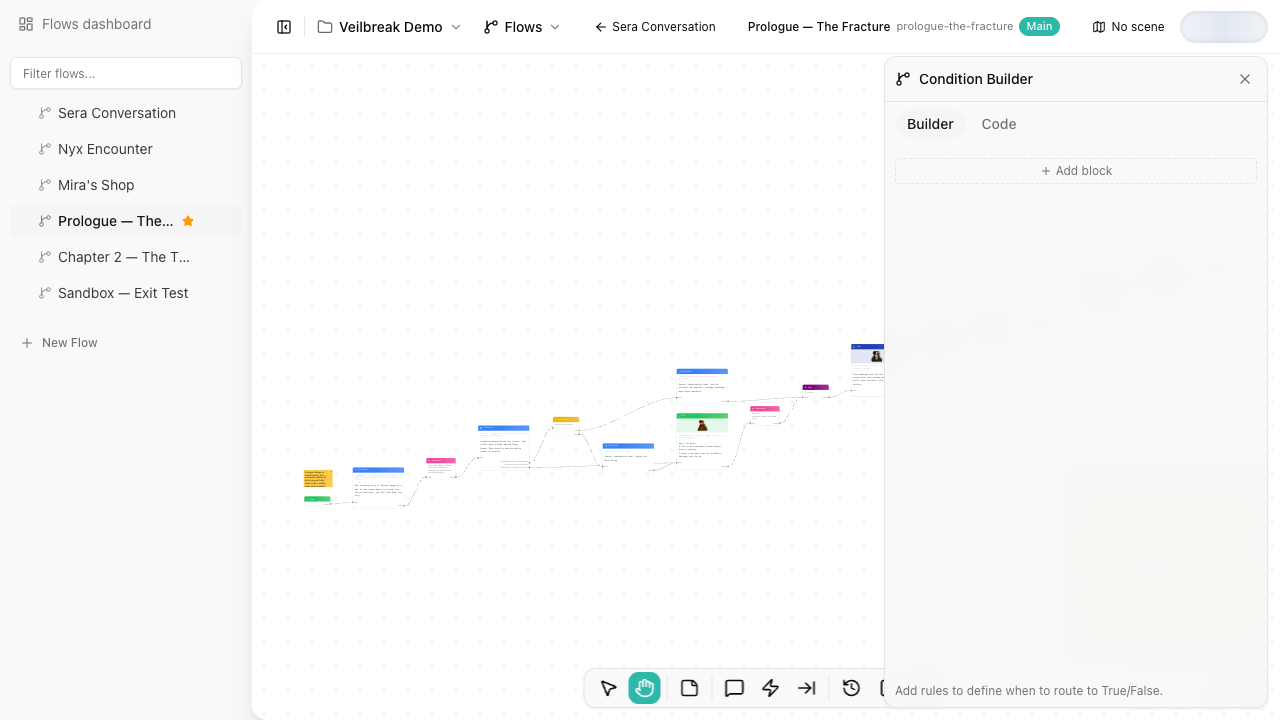
Select the Condition node and click the settings icon in its floating toolbar (or press E) to open the Condition editor panel in Builder mode:
- Select the variable
mc.jaime.health - Set the operator to Greater than
- Enter the value
50
The Condition node now has two outputs: True and False.
Branch the conversation
Add two more Dialogue nodes and connect them to the Condition outputs:
- True output – “Ah, you seem in good shape! What can I get you?”
- False output – “You’re barely standing! Sit down, I’ll bring a healing potion.”
Add an Exit node after each dialogue to end the flow.
Test with the debugger
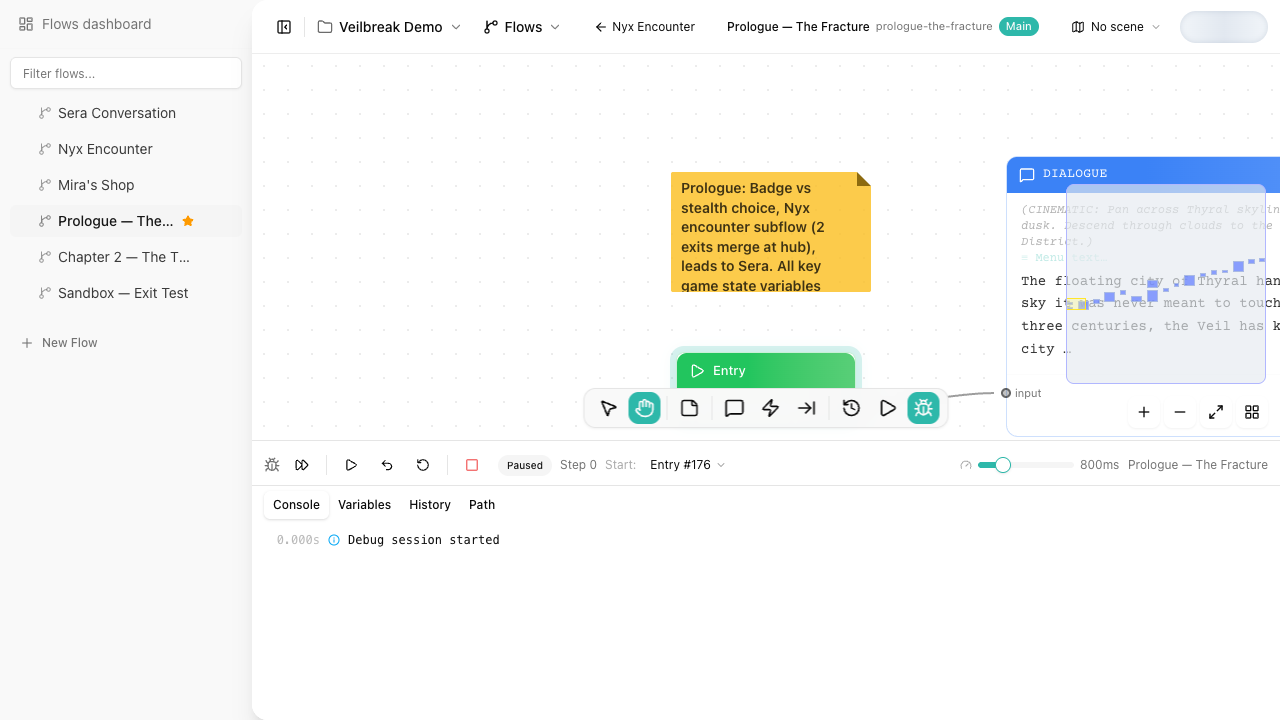
Click the Debug button in the top-right toolbar (or press Ctrl+Shift+D) to open the debug panel at the bottom of the canvas.
The debug panel has five tabs:
- Console – shows the execution output as it happens
- Variables – displays all project variables and their current values
- History – lists every variable change and the node that made it
- Path – lists the nodes visited, in order
- Composition – shows the images and sound of the dialogue being executed
Click Step (or press F10) to advance through nodes one at a time. The variable panel shows mc.jaime.health = 100. Since 100 > 50, the flow takes the True path.
Try changing the Health value to 30 on the character sheet and running the debugger again – the flow will take the False path instead.
Play it in the Sequence editor
Debug Mode explains how the flow executes. Playback shows how it feels to a player.
Click Play in the flow toolbar to open the Sequence editor above the canvas. Select the first dialogue and click Play in the workspace to start playback from it, with the variables’ initial values. Advance through the dialogue and confirm that:
- The first NPC line appears before the condition runs.
- With
mc.jaime.health = 100, the player reaches the healthy response. - After changing Health to
30, the player reaches the healing-potion response.
Use playback when you want to review pacing, speaker text, and choices. Use Debug Mode when you need to inspect variables, conditions, and execution history.
Export the project
Once the flow works, open Export from the project sidebar. For a first export:
- Choose Yarn Spinner, Ink, Unity Dialogue System, Godot Dialogic, Unreal Engine, or articy:draft depending on the runtime or engine you want to test.
- Keep Sheets and Flows selected so the exported dialogue includes the variable data used by the condition.
- Turn on Validate before export to catch missing entry nodes, unreachable nodes, broken references, and missing translations.
- Click Download.
For this tutorial, export one engine format you care about. The goal is to see how the same flow leaves Storyarn for runtime integration.
Completion checklist
You have finished the Quick Start when you can confirm all of this:
- You created a workspace and project.
- You created the
mc.jaimesheet. - You created the
mc.jaime.healthvariable. - You used that variable in a Condition node.
- You tested both branches in Debug Mode.
- You played the flow in the Sequence editor.
- You exported the project.
Available node types
The flow editor supports these node types, all available from the Add Node dropdown:
| Node | Purpose |
|---|---|
| Entry | Starting point of the flow |
| Exit | Ends the flow (terminal, continue to another flow, or return to caller) |
| Dialogue | Character speech with optional responses, speaker, audio, and stage directions |
| Condition | Branches based on variable conditions (boolean or switch mode) |
| Instruction | Modifies variable values (assignments) |
| Hub | Named merge point that Jump nodes can target |
| Jump | Jumps execution to a Hub node |
| Subflow | Embeds another flow as a reusable sub-routine |
| Annotation | Visual note for documenting the canvas without affecting execution |