

Narrative Design
Flows Overview
Visual dialogue trees and branching narrative logic.
Flows are the heart of Storyarn – visual node graphs where you build branching dialogue, game logic, and interactive narratives. Each flow is a canvas of connected nodes that define how a conversation or sequence plays out, from a simple linear exchange to a sprawling quest tree with dozens of branches.
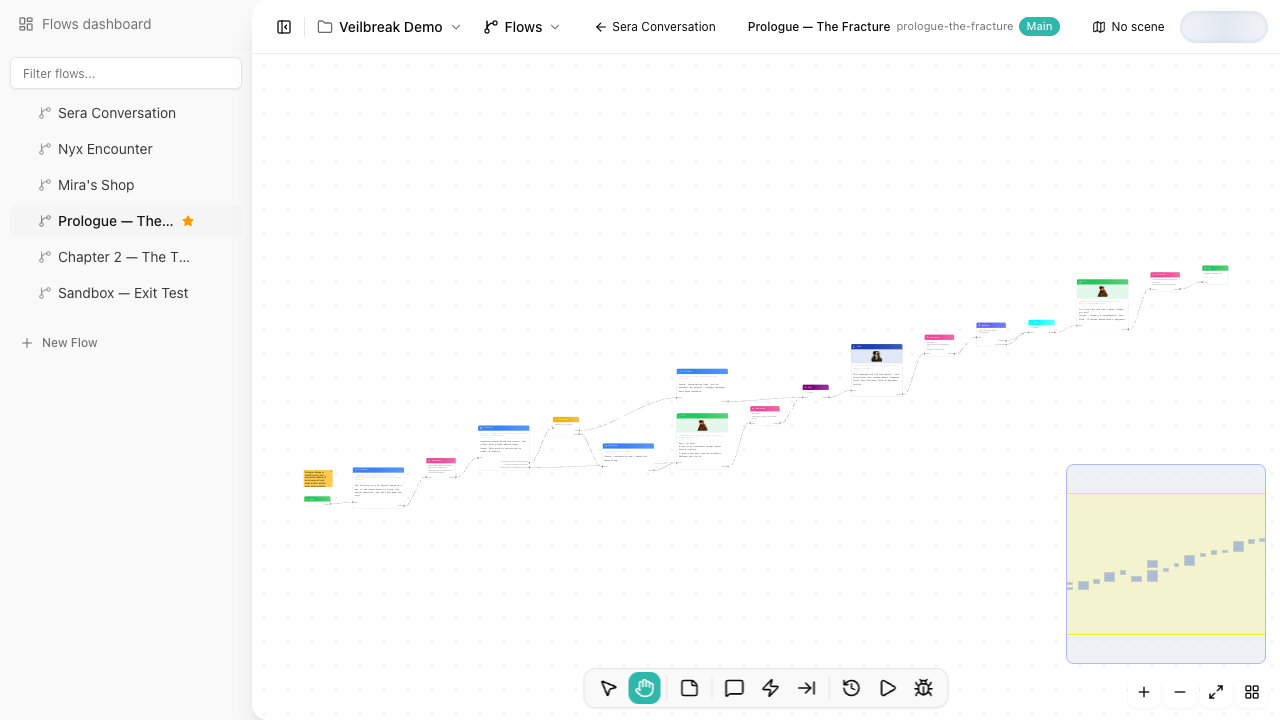
The editor
The flow editor is a full-screen canvas. You create nodes from the floating toolbar, connect them by dragging between output and input pins, and edit content in the side panel that appears when you select a node.
- Pan by dragging the background
- Zoom with the scroll wheel
- Select a node by clicking it; double-click to open its primary editor (focused dialogue editor for dialogue, the condition or instruction editor for conditions and instructions)
- Multi-select with click-drag or Shift+click
- Duplicate selected nodes with the context menu or keyboard shortcut
- Undo/Redo for node operations
Nodes are connected through pins – small circles on the edges of each node. Drag from an output pin to an input pin to create a connection. Connections define the order in which nodes are executed during playback and debugging.
Node types
The node palette offers 9 node types. Visual compositions belong to dialogues and are edited in the Sequence editor.
| Node | Icon | Purpose |
|---|---|---|
| Entry | Play | Where the flow starts. Auto-created with the flow, cannot be deleted. See Entry & Exit Nodes. |
| Exit | Arrow right | Where the flow ends. Supports terminal, continue-to-flow, and return-to-caller modes. See Entry & Exit Nodes. |
| Dialogue | Message square | Character speech with optional player responses. The most common node type – see the dedicated guide. |
| Condition | Git branch | Branches the flow based on variable values. See Condition Nodes and the Condition Editor. |
| Instruction | Zap | Modifies variable values when the flow passes through. See Instruction Nodes and the Instruction Editor. |
| Hub | Log in | A named merge point where multiple paths converge. See Hub & Jump Nodes. |
| Jump | Log out | Jumps to a Hub node within the same flow. See Hub & Jump Nodes. |
| Subflow | Box | Embeds another flow inside this one. See Subflow Nodes. |
| Annotation | Sticky note | Purely visual note for design intent, TODOs, or context on the canvas. See Annotation Nodes. |
A typical structure
Entry
  -> Dialogue (NPC greeting)
    -> Condition (has quest item?)
      -> True: Dialogue (quest complete)
           -> Instruction (give reward, mark quest done)
             -> Exit (Terminal, outcome: "quest_complete")
      -> False: Dialogue (come back later)
           -> Exit (Terminal, outcome: "quest_pending")
Flows can be as simple as a linear conversation or as complex as an entire quest tree. Use Hub and Jump nodes to merge converging paths without duplicating dialogue. Use Subflow nodes to compose larger narratives from reusable flow fragments.
Organizing flows
The sidebar lists your flows as a tree. Drag a flow onto another to nest it there, or choose Move to… from its menu. Nesting only organizes the list. To run one flow from another, use a Subflow node (below).
A tree can be up to 100 levels deep. Storyarn won’t create, move or restore a flow below level 100, and tells you why. A level holds as many flows as your plan allows.
Subflows and nested execution
Subflow nodes let you embed one flow inside another. When the execution reaches a subflow node, it enters the referenced flow’s Entry node and runs through it. When it hits an Exit node with Return to caller mode, execution returns to the parent flow and continues from the corresponding output pin.
Each Exit node in the referenced flow creates a separate output pin on the subflow node, so the parent flow can branch based on which exit the subflow took. The debugger and inline playback both support full cross-flow navigation with a call stack, so nested subflows work exactly as you would expect.
Sequence editor and playback
Flows open with the full node canvas. Click Play in the toolbar to open the visual Sequence editor above it; drag the divider to resize both views. Select a dialogue to arrange its images, layers and audio. Click Stop in the toolbar to return to the full node canvas.
Use Play scene inside the Sequence editor to test the narrative in place. Playback evaluates conditions and instructions, follows subflows, and pauses for dialogue or player choices. You can go back, restart, change the preview language, or expand the workspace to fullscreen without navigating away.
Preview variables belong to the current playback session; testing a branch does not write those values into your sheets. Use Debug to inspect the execution state and unavailable choices.
See the Sequence editor guide for visual editing, audio, collaboration and preview controls.
Debug Mode
Most narrative tools force you to playtest by running the whole game. Storyarn has a built-in debugger – step through your flow node by node, inspect every variable in real time, set breakpoints, and see exactly which path was taken and why.
- Step advances one node at a time
- Step Back rewinds to the previous state
- Run auto-advances at configurable speed (200ms-3000ms per step), stopping at breakpoints and player choices
- Reset restarts from the start node
- Start from any node – pick any node in the flow as the starting point
- Breakpoints – click the dot next to any node in the Path tab to set a breakpoint; auto-play stops there
- 5 information tabs: Console (log with timestamps and rule evaluation details), Variables (live values with filtering, inline editing, and change tracking), History (every variable change with source attribution), Path (visual execution trace with breakpoint controls), and Composition (effective visual layers, audio and their origins)
- Edit variables mid-session – click any variable value in the Variables tab to change it, then continue execution to test alternate paths
Change a variable value, reset, and re-run to test alternate paths. No game engine needed, no export cycle – verify your logic right where you write it.
For a detailed walkthrough, see the Debug Mode guide.