

Brainstorming
Rounds, Privacy, and Timer
Split a session into rounds with their own question, let people write privately before revealing, and run a shared countdown.
A round is one stretch of a session with one question, such as “What does Tobin want from Mara?” Rounds are stacked as horizontal bands on the same canvas, so the whole conversation stays readable from top to bottom: earlier rounds above, the round in progress below.
Every session starts with Round 1. While it is the only round, the canvas stays quiet about it and only shows its question, if it has one. Rounds are optional: a session can stay a single round from start to finish.
The round header
Each band starts with a header that shows the round number, its question, its status (In progress or Closed), and how many notes it holds. The header of the round you are reading stays pinned at the top while you scroll inside its band.
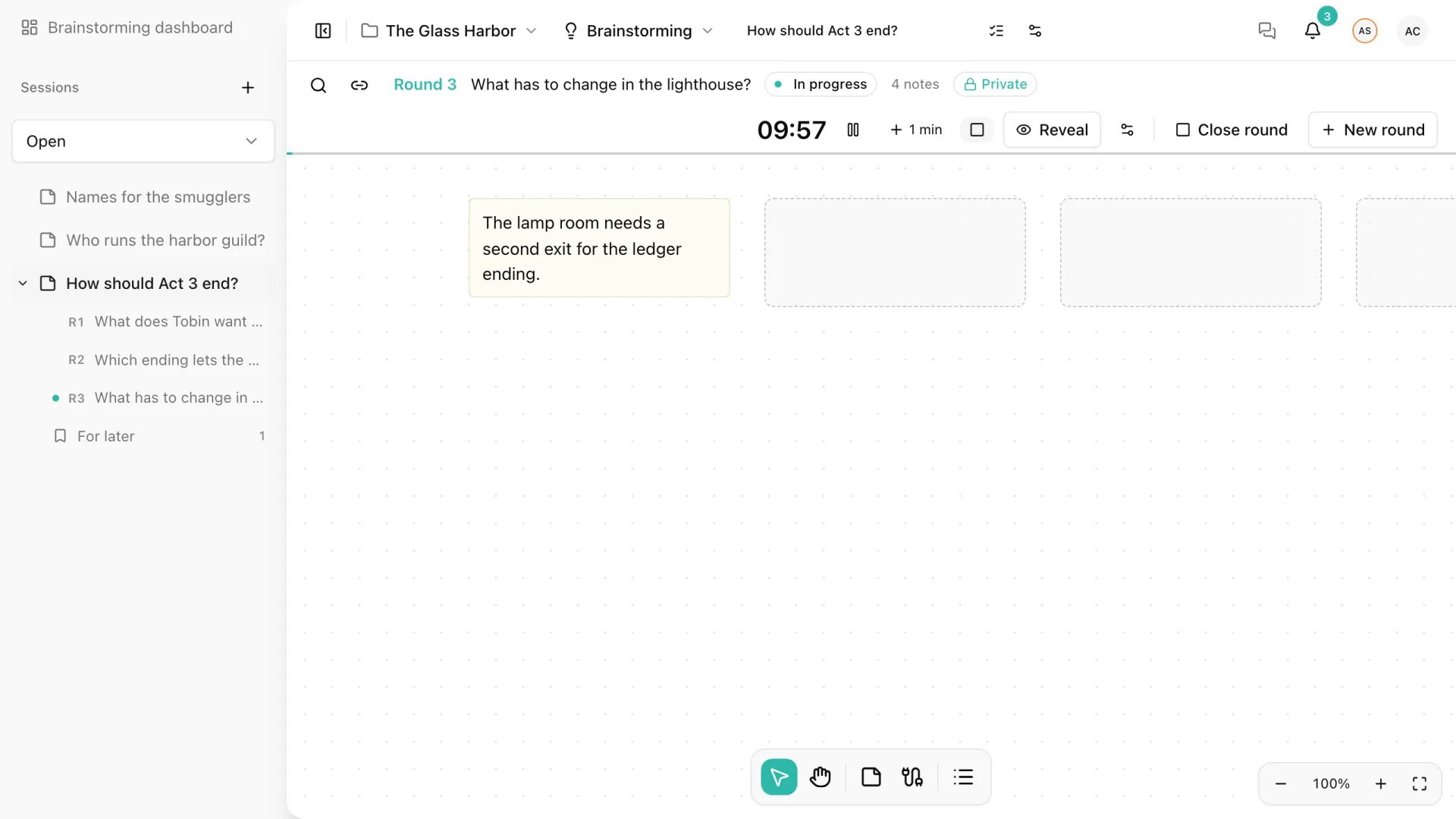
The facilitator writes the question in place on the header of the round in progress (Add a question when it has none). Everyone else reads it. In the sidebar, rounds are named after their questions, so “R2 · Which ending lets the player choose?” takes you straight to that band.
Start and close rounds
These controls belong to the facilitator, or the project owner acting as one.
- New round closes the round in progress and opens the next band below it, in one step. Write the new question on its header. It is also in the canvas context menu, which is where you start Round 2: while a session has a single round, its header shows neither New round nor Close round.
- Close round ends the round in progress without opening another. Use it at the end of a session, when the team moves on to grouping and deciding.
A session can have up to 30 rounds. You can create as many sessions as you need.
Closing a round does not hide, freeze, or publish anything. Notes keep their author, state, and round, and can still be edited, grouped, and connected. Only one round is in progress at a time, and a closed round cannot be reopened.
A new note belongs to the round whose band it is placed in. A note first saved after its round closed keeps that round and is labeled Added after closing. Editing a note that was already saved before closing does not add that label.
Private rounds
When a round is private, everyone writes without seeing what the others write. Each participant sees their own notes of that round; everyone else’s, the facilitator’s included, appear as grey placeholders with no text or author. Seeing other people’s ideas too early tends to pull the group toward them, so a private round collects independent ideas first and discusses them afterwards.
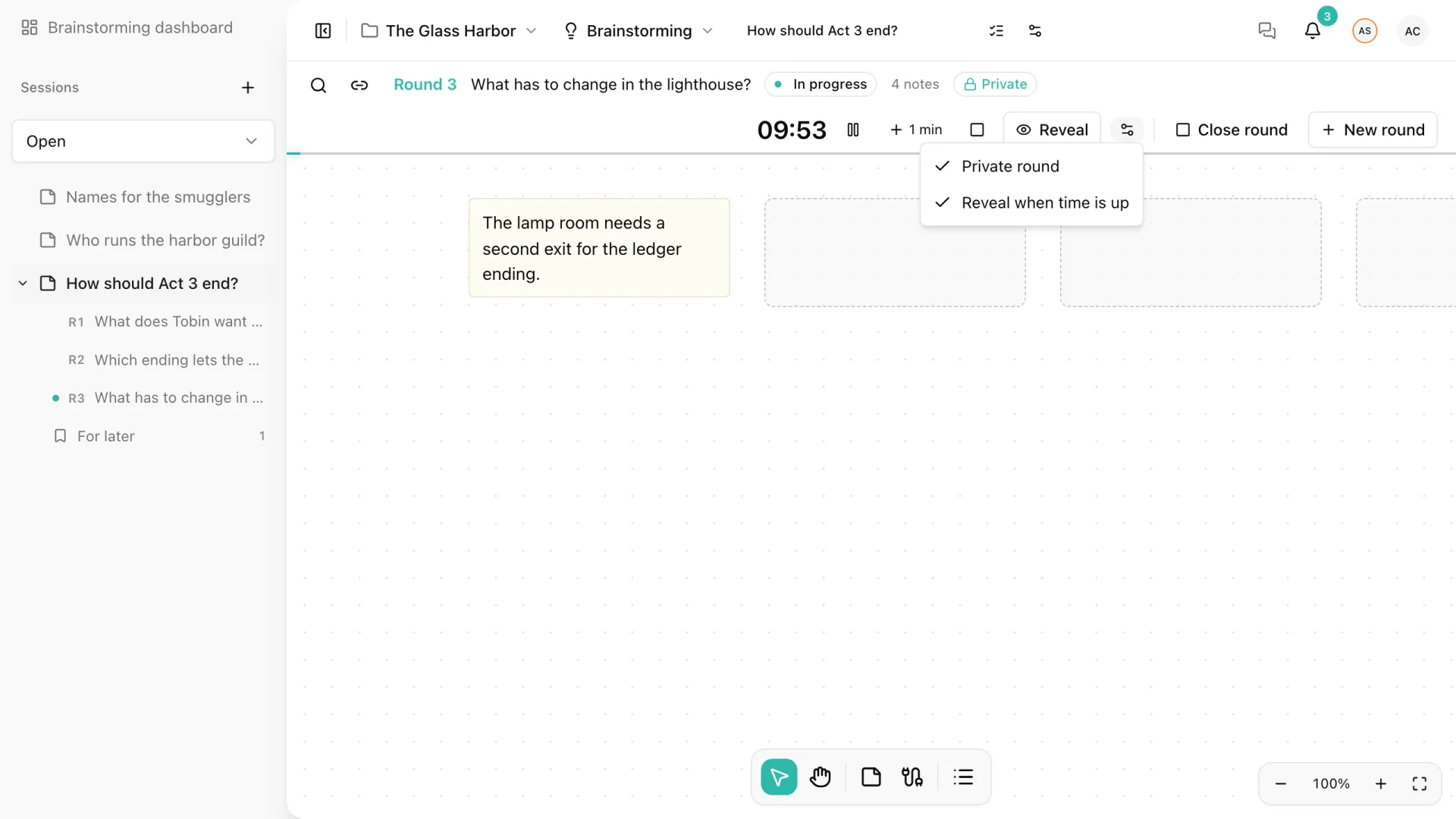
Privacy is a setting of each round. Open the settings menu on the header of the round in progress and turn on Private round. A private round shows a Private badge next to its status.
While a round is private:
- its notes cannot be grouped, used as decision sources, or commented on;
- while it is the round in progress, cursors are not shared, so nobody can follow someone else’s writing;
- the note count on the header includes the hidden notes, so everyone can see the round filling up.
Nothing is carried over: a new round always starts shared, even if the previous one was private.
Reveal a round
Reveal on the header publishes the round’s notes to everyone at once. If Reveal when time is up is on in the round settings, the timer reveals the round when it reaches 0:00.
A reveal is final: a revealed round cannot become private again. Discarded notes are not revealed. A closed round can still be revealed, but it can never be made private.
The timer
The header of the round in progress carries a countdown that everyone in the session sees, including viewers.
- Click the digits and type the minutes and then the seconds, up to 99:59.
- Press play or Enter to start.
- While it runs you can pause and resume it, add a minute with +1 min, or stop it. The line under the header fills as time passes.
When the countdown reaches zero the digits stop there, and the facilitator can type a new time. The timer never closes or starts a round on its own. Closing the round, or starting the next one, stops its timer.
Close new contributions
Sometimes the team needs to stop adding ideas and start working with the ones on the canvas. In Session details and settings, Close new contributions now blocks new notes, duplicates, and pastes for everyone. Existing notes can still be edited, moved, grouped, and deleted. Reopen contributions lifts it.