

Brainstorming
Decisions in Your Content
Start explorations from a Sheet, Flow, or Scene, and find, apply, and follow up the decisions that affect it.
Brainstorming connects to the rest of your project in both directions. You can start a session from the content you want to change. Decisions connected to a Sheet, Flow, or Scene remain in its editor and on the dashboard after they are applied. Decisions that name the content can also appear in the command palette. The editor’s amber count only tracks decisions still to apply.
Explore changes from your content
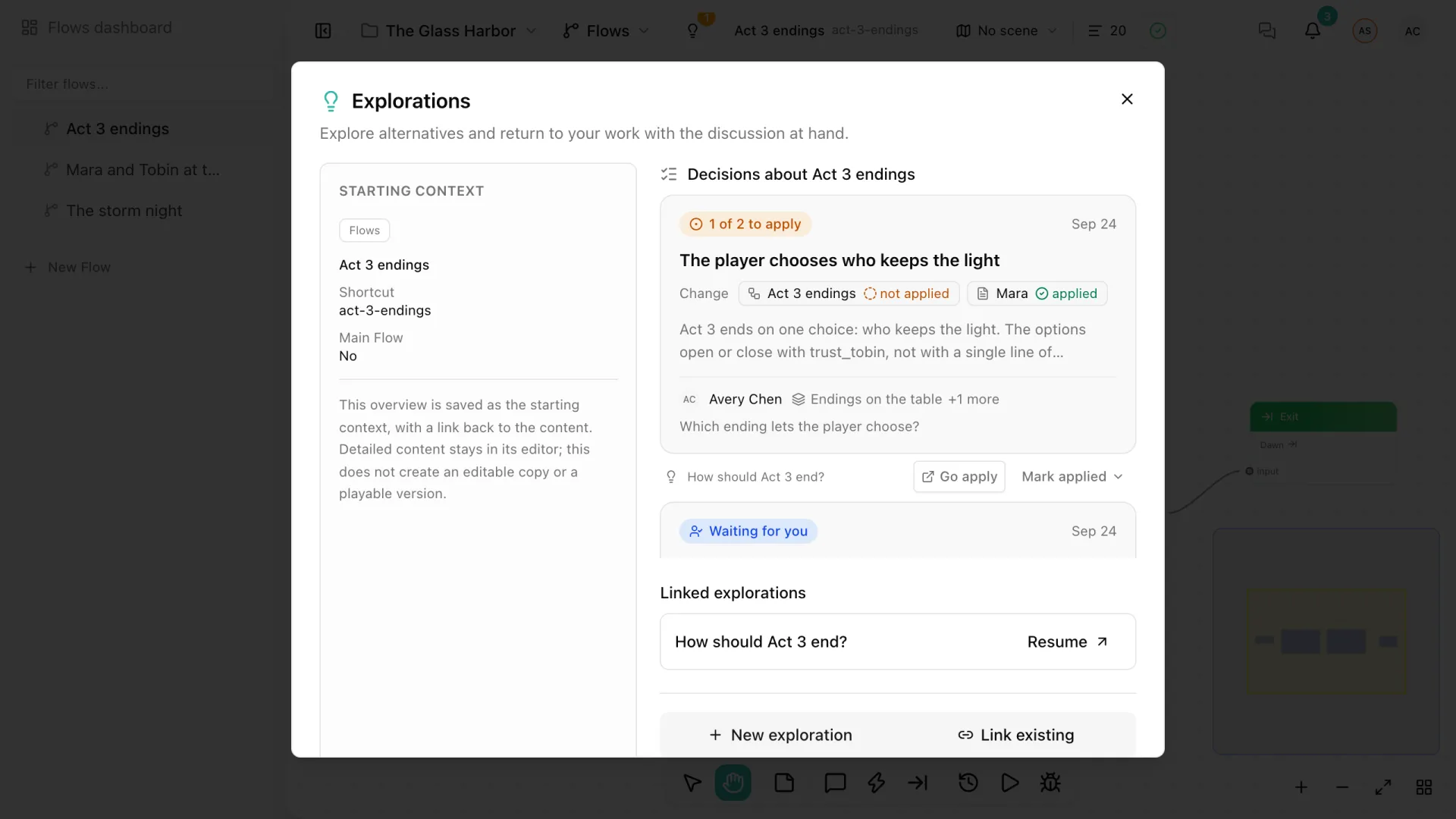
Every Sheet, Flow, and Scene editor has a lightbulb at the left of its header, labeled Explore changes. It opens the Explorations dialog, which has three parts:
- Starting context: an overview of the content, such as its name, shortcut, and description. It is saved with the session as a reference; it is not an editable copy and it does not change the original.
- Decisions about the content, when there are any. See below.
- Linked explorations: the sessions that already explore this content. Select Resume to continue one, or View for an archived session.
To start a new session about the content, select New exploration, give it a title and optionally write what you would like to explore, then select Create and explore. To add the content to a session that already exists, select Link existing and search for it by title.
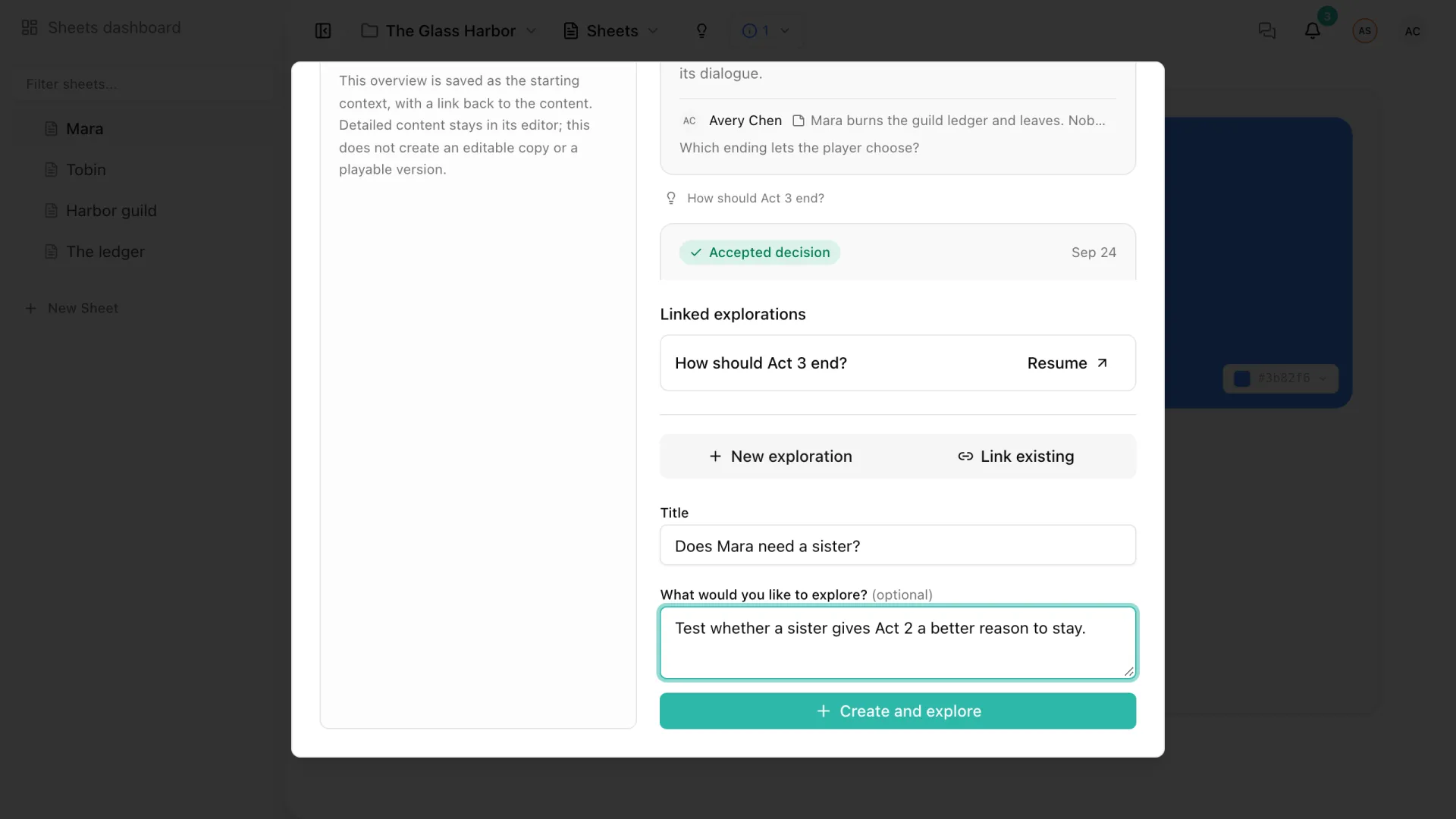
Viewers can open and resume the explorations they have access to, but need editing access to create or link one.
References inside a session
A session can keep more of the project at hand than its starting content. References, the link button at the top left of the canvas, opens Session references, where you link Sheets, Flows, Scenes, Assets, and localized texts to the session, each with a purpose such as Reference or Affects. A Sheet, Flow, or Scene linked this way also lists the session among its linked explorations, with its decisions.
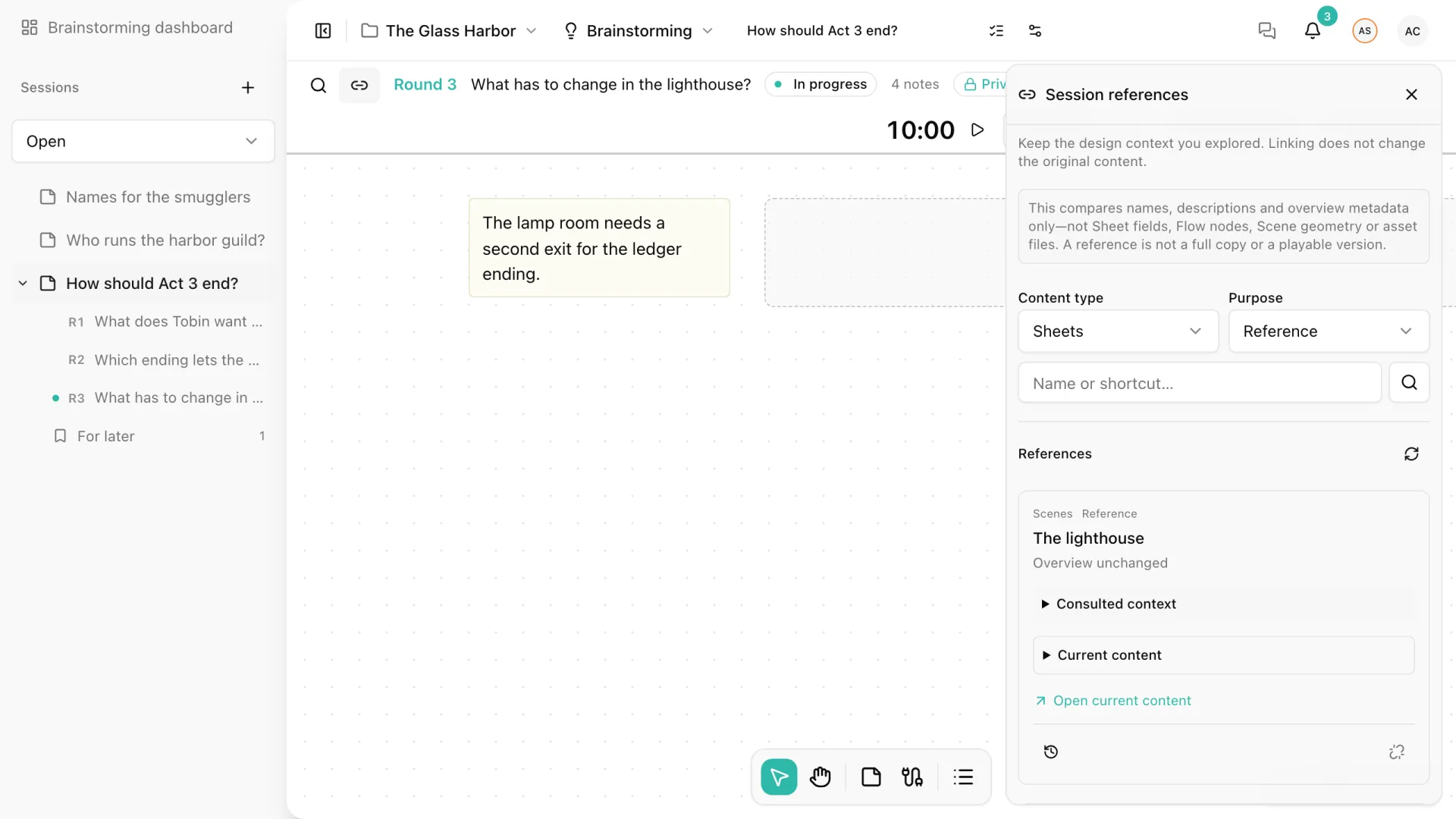
Each reference keeps the overview you consulted when you linked it. If the content changes later, the reference says Overview changed since linking, and Open current content takes you to the editor. Linking never changes the original content.
Decisions in the editor
When accepted decisions still have something to apply on a Sheet, Flow, or Scene, its lightbulb shows an amber count. Hover over it to read a summary, such as “2 decisions about Mara · 1 to apply”.
The Explorations dialog lists the Decisions about that content: first those still to apply, then open proposals, then those already applied or that need no change, and finally withdrawn and superseded ones. The list includes the decisions that name the content in Affects and every decision of the sessions that explore it.
You can open any of them in its session. On a decision still to apply here, editors can also:
- select Mark applied to declare its state without leaving the dialog;
- select Go apply to work on it in the editor.
Apply a decision
Go apply opens the affected content with the decision pinned under the editor header: its title, verb, conclusion, and session, next to the content you are about to change.
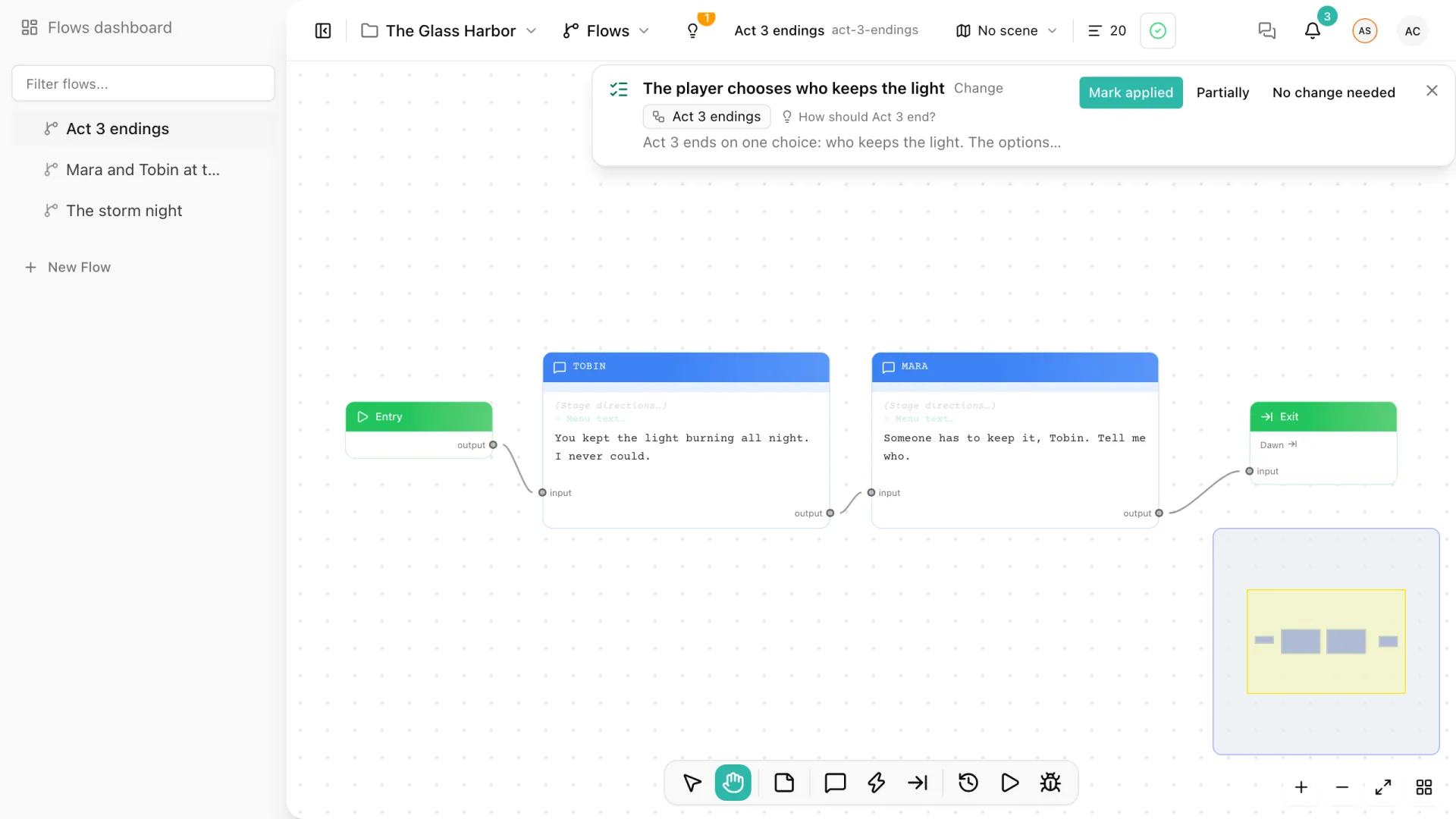
Make your changes, then choose Mark applied, Partially, or No change needed, optionally with a short note. For five seconds after marking you can Undo, which restores the previous state; then the banner closes on its own. You can also close it, and it goes away when you move to other content.
Storyarn never applies a decision for you and never checks the content to decide whether it was applied. The state is what your team declares.
Notifications
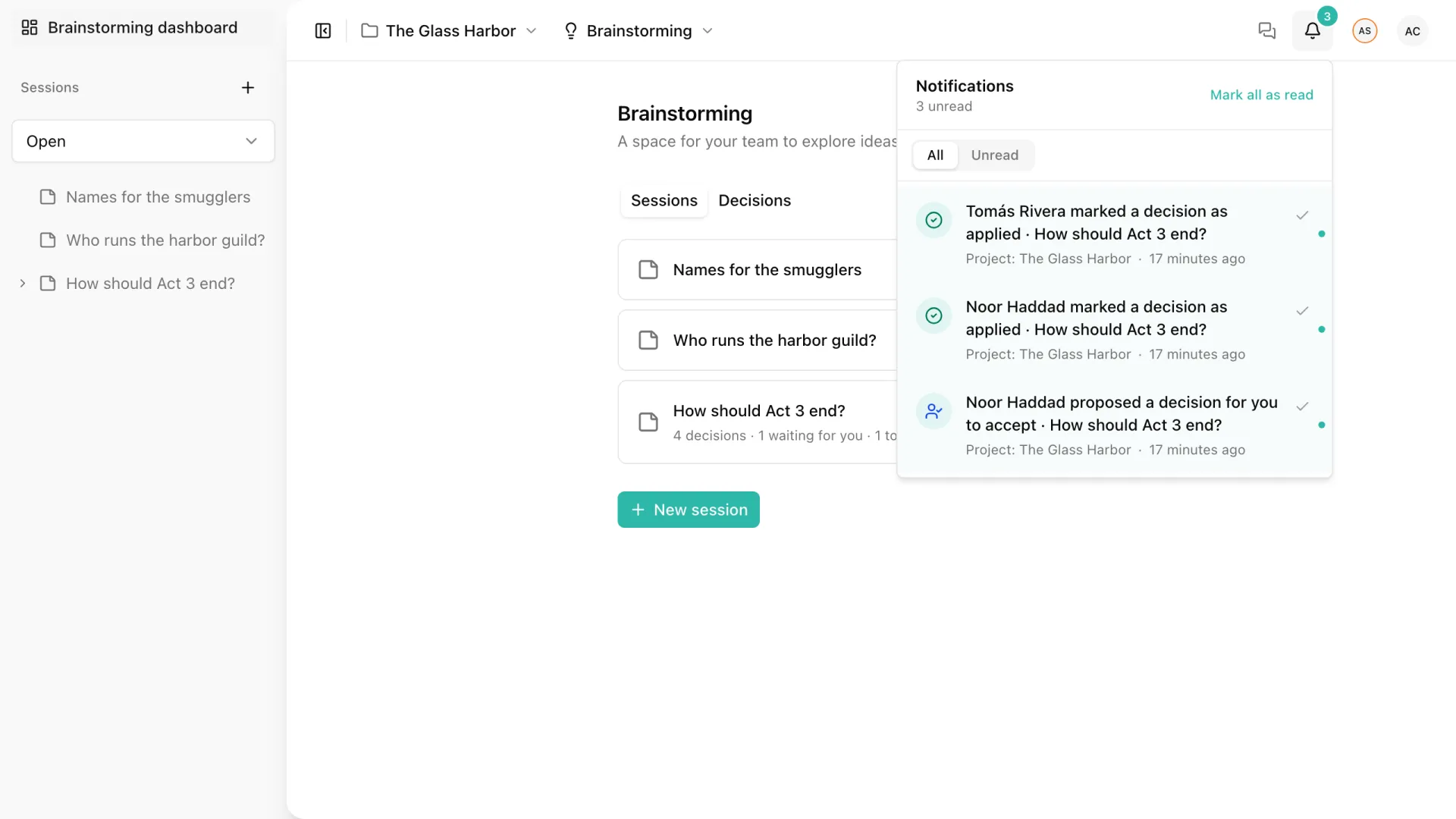
Decisions notify the people who have to act, in the notifications inbox:
| When | Who is notified |
|---|---|
| A decision is proposed | The responsible person, who has to accept it |
| A decision is accepted | Its proposer, and everyone who started a discussion about it |
| An accepted decision has a next action | The person the next action is assigned to, when the decision is accepted |
| An affected piece of content is marked applied | The responsible person and whoever first proposed the decision |
You are never notified of your own actions. Mentions and replies in a decision’s discussion arrive like any other comment notification.
The decisions dashboard
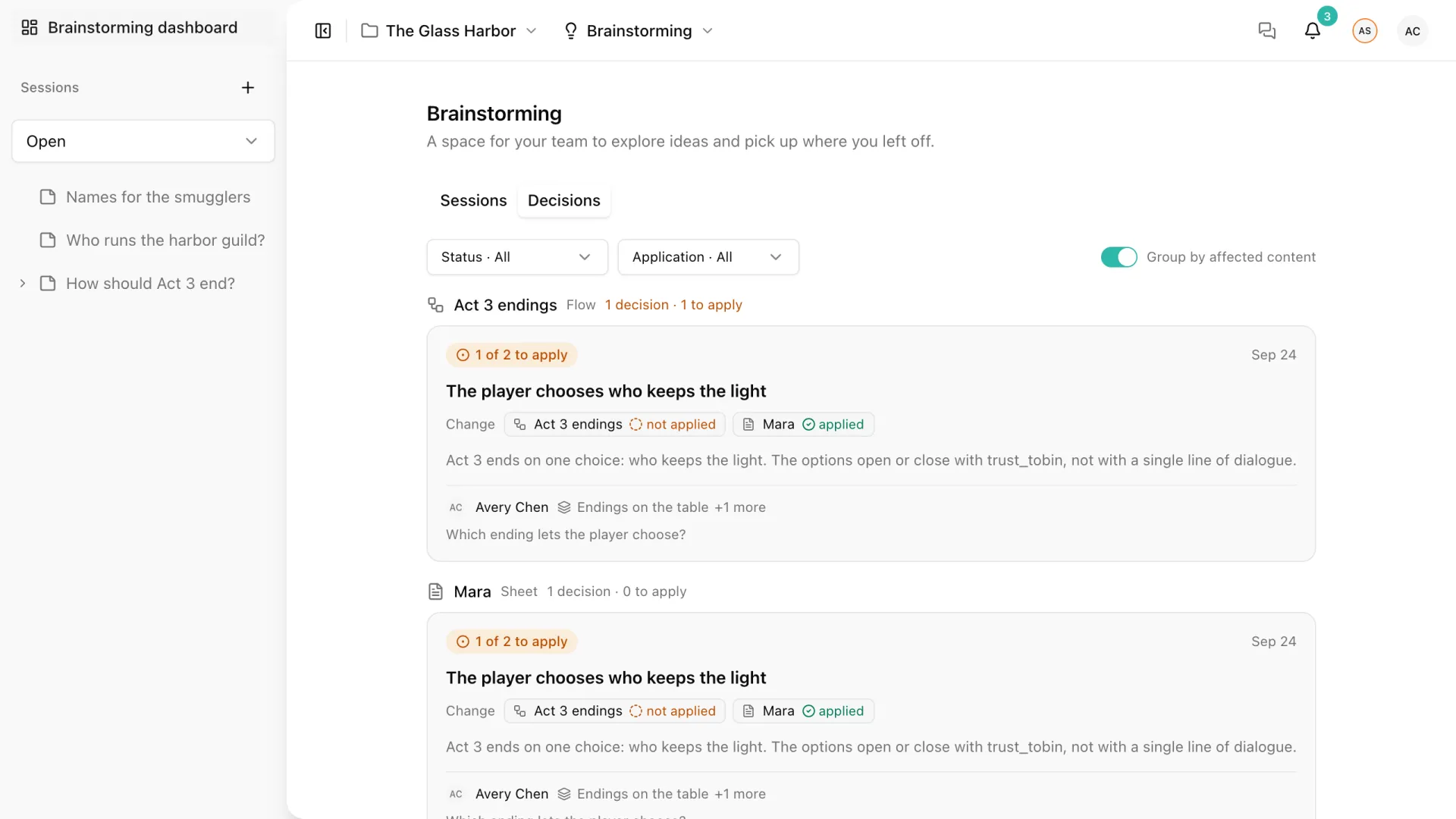
The Decisions tab of the Brainstorming dashboard lists every decision in the project, from every session.
- Filter by status: Proposals, Accepted, or Withdrawn and superseded.
- Filter by application: Still to apply, Applied, or No change needed.
- Turn on Group by affected content to see, for each Sheet, Flow, or Scene, the decisions about it and how many are still to apply.
The command palette
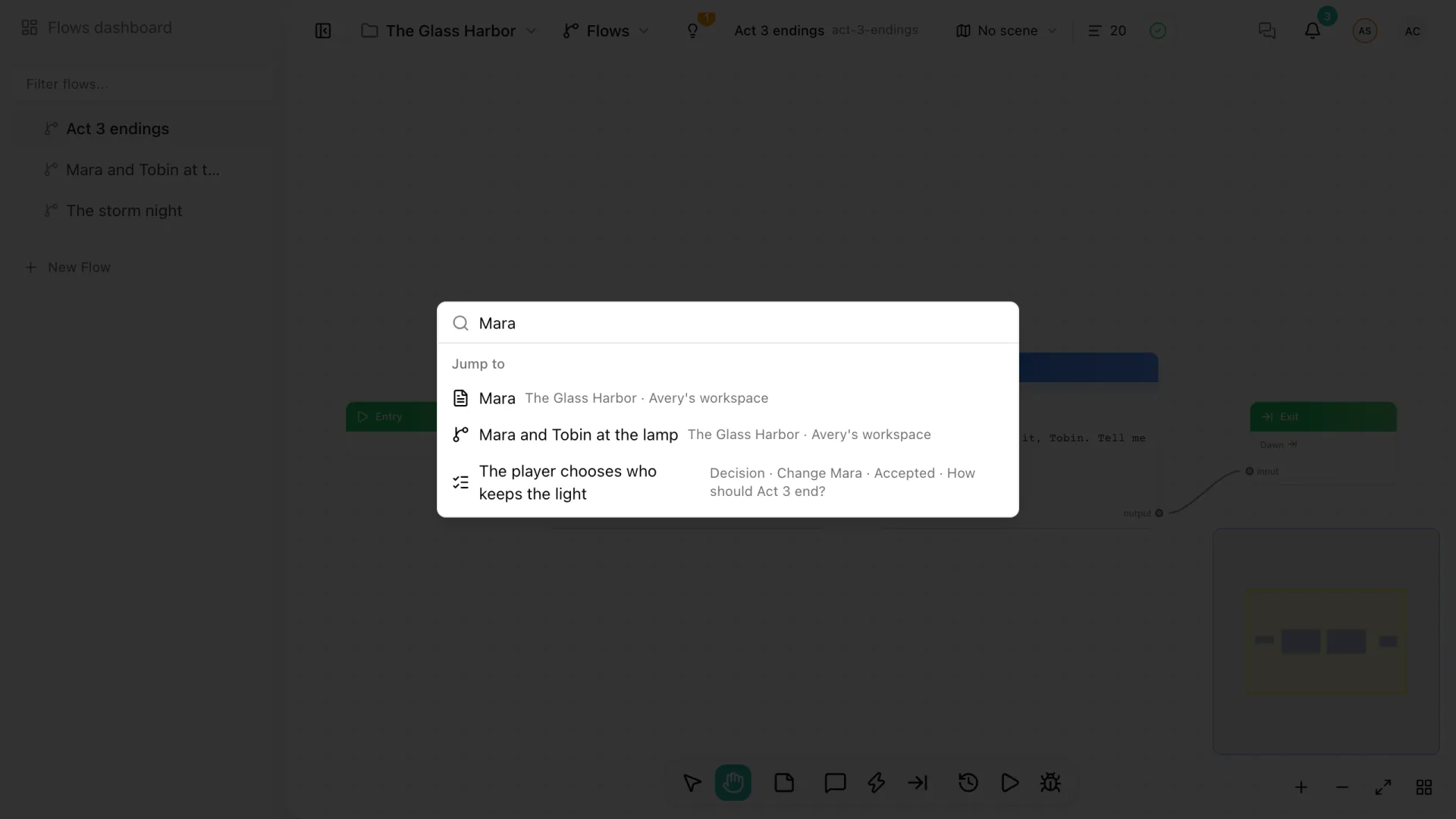
Press Cmd/Ctrl+K and type the name of a Sheet, Flow, or Scene. Under Jump to, the palette can show the content and a few decisions that name it, with their verb, status, and session.
Decisions follow the same access rules everywhere: you only see the decisions, sessions, and sources you are allowed to read.