World Building
Sheets Overview
Understand how sheets organize your game data into a living database.
Sheets are structured data containers for your project’s world data. Character profiles, item catalogs, location details, faction rosters – anything you need to define and track across your narrative.
Each sheet holds a set of blocks (typed fields like text, number, select, boolean) that define its structure. Value-carrying blocks that aren’t marked as constants become variables that flows can read and modify at runtime. Reference and gallery blocks do not participate in the variable system.
Shortcuts
Every sheet has a shortcut – a dot-notation identifier that flows, conditions, and instructions use to reference it.
Shortcuts are auto-generated from the sheet name but can be edited manually. The format is lowercase alphanumeric with dots and hyphens (e.g., mc.jaime). Use prefixes to organize by domain:
mc.jaime– main characteritem.healing-potion– an itemloc.tavern– a locationfaction.guild– a faction
Shortcuts must be unique within a project. If a sheet already has variables referenced in flows, renaming it won’t change the shortcut to avoid breaking references.
Variable references
Blocks that support variables use the pattern:
{sheet_shortcut}.{variable_name}
The variable name is auto-generated from the block label using underscore notation. For example, a block labeled “Health Points” on sheet mc.jaime becomes:
mc.jaime.health_points
These references are what flows use in conditions (“Is mc.jaime.health_points greater than 50?”) and instructions (“Set mc.jaime.health_points to 100”).
Organizing with folders
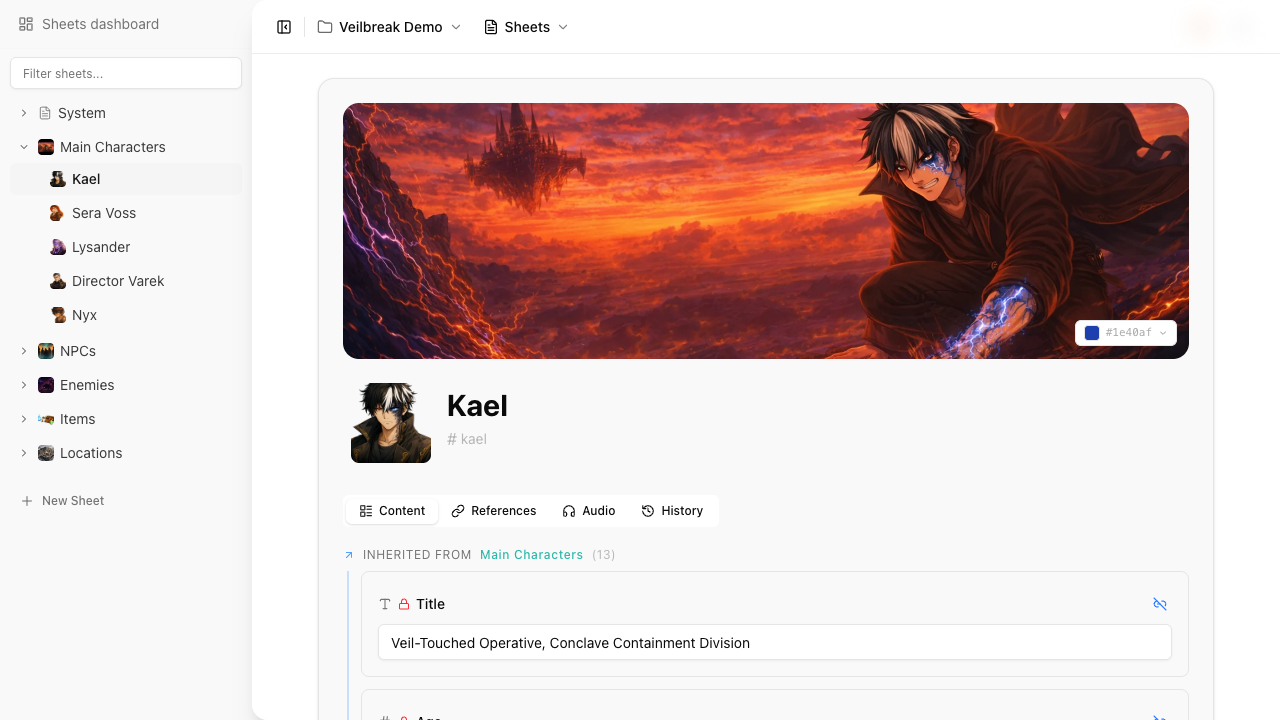
Sheets support a tree structure. Drag and drop to reorder, nest sheets inside other sheets for organization.
A tree can be up to 100 levels deep. Storyarn won’t create, move or restore a sheet below level 100, and tells you why. A level holds as many sheets as your plan allows.
Main Characters/
  mc.jaime
  mc.elena
  mc.kai
Items/
  Weapons/
    item.iron-sword
    item.fire-staff
  Potions/
    item.healing-potion
Any sheet can have both children and its own blocks. Parent sheets can also define inherited properties that cascade to their children (see Property Inheritance below).
Property inheritance
Blocks have a scope setting that controls whether they stay local or cascade to child sheets:
- Self (default) – the block exists only on this sheet.
- Children – the block definition propagates to all descendant sheets. Each child gets its own instance with local values but the same type, label, and configuration.
This lets you create template-like parent sheets. A “Character Base” sheet with children-scoped blocks (health, level, faction) automatically gives every child sheet those same fields, each with their own independent values.
Child instances stay synced with the parent definition: if you change the label, type, or options on the parent block, all non-detached instances update. You can detach an instance to make it fully independent, or re-attach it to sync again. A detached block switched to Children replaces the parent’s block for the sheets below its own: the nearest definition wins, and each of those sheets keeps its value. When the copy keeps to its sheet again, is re-attached or deleted, they go back to the parent’s block, still with their values. A block detached on one of those sheets re-attaches to the copy.
Sheets can also hide specific inherited blocks, preventing them from cascading further down to their own children. A hide stays when the parent’s block is switched to Self and back to Children. It covers the whole inherited block: it still applies when a copy of that block, passed on nearer, replaces the parent’s block, and when the copy stops. Hiding keeps what a sheet already holds, and nothing new arrives under it: a sheet moved below a hide from outside it keeps its instance of the hidden block as its own copy, with its value (one moved within the hidden part keeps it as it was), and a version restore keeps the link of a block the sheet still holds.
Sheet customization
Each sheet supports additional metadata:
- Color – a hex color for visual identification in the sidebar and references.
- Avatar – an uploaded image shown as the sheet’s icon.
- Banner – a header image displayed at the top of the sheet.
- Description – rich text for notes and annotations (not exposed as a variable).
Versioning
Storyarn tracks the history of each sheet through version snapshots.
- Auto-versioning – a snapshot is automatically created when you edit a sheet, with a minimum interval of 10 minutes between snapshots to avoid noise. Automatic snapshots are kept as long as deleted items stay in the trash, a period set by the plan of the workspace’s owner, and are then deleted. Naming one keeps it, within the plan’s limit of named versions.
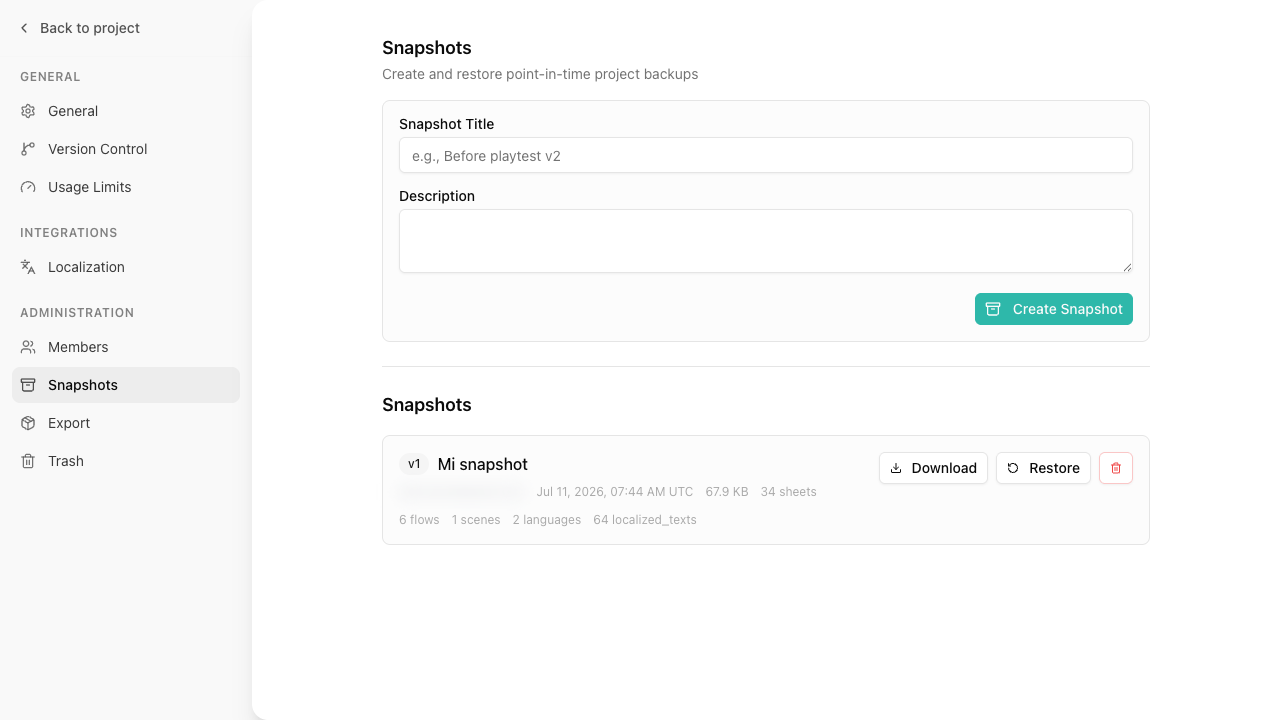
- Manual snapshots – you can create a named version with a title and description at any time to mark a meaningful milestone.
- Restore – roll back to any previous version. This restores the sheet’s name, shortcut, avatar, banner, and all block types, configurations, and values. An inherited block still linked to its parent takes the parent block’s definition as it is now and keeps the version’s value; a linked table takes the parent’s columns and rows and keeps the version’s cells wherever their row is still there and their column has kept its type, even when the parent renamed them. A block the sheet no longer inherits, because the parent deleted its block, stopped passing it on, or the sheet moved elsewhere, comes back detached with the version’s values, and the restore preview lists those blocks. A block whose scope changed since the version switches back as the toolbar switches it: passed on again, each sheet below gets back the instance it had, with its value; kept to the sheet again, the sheets below lose it. The restore preview lists those blocks too. A block the parent added after the version stays, with the value the sheet gave it, after the version’s blocks. If another sheet uses that shortcut now, the restored one takes it with
-restoredadded (mc.jaime-restored, thenmc.jaime-restored-2), and the restore preview shows that name before you confirm. If that name changes before you confirm, because another sheet takes it or frees the shortcut the preview had to replace, the restore stops and tells you the shortcut it would use now; restore again to use it.
Each version records who made the change and generates a summary of what changed (blocks added, removed, or modified).