

Welcome
Core Workflow
How a typical project comes together in Storyarn.
Every team uses Storyarn differently, but here’s how a typical project flows from setup to shipped.
Set up your space
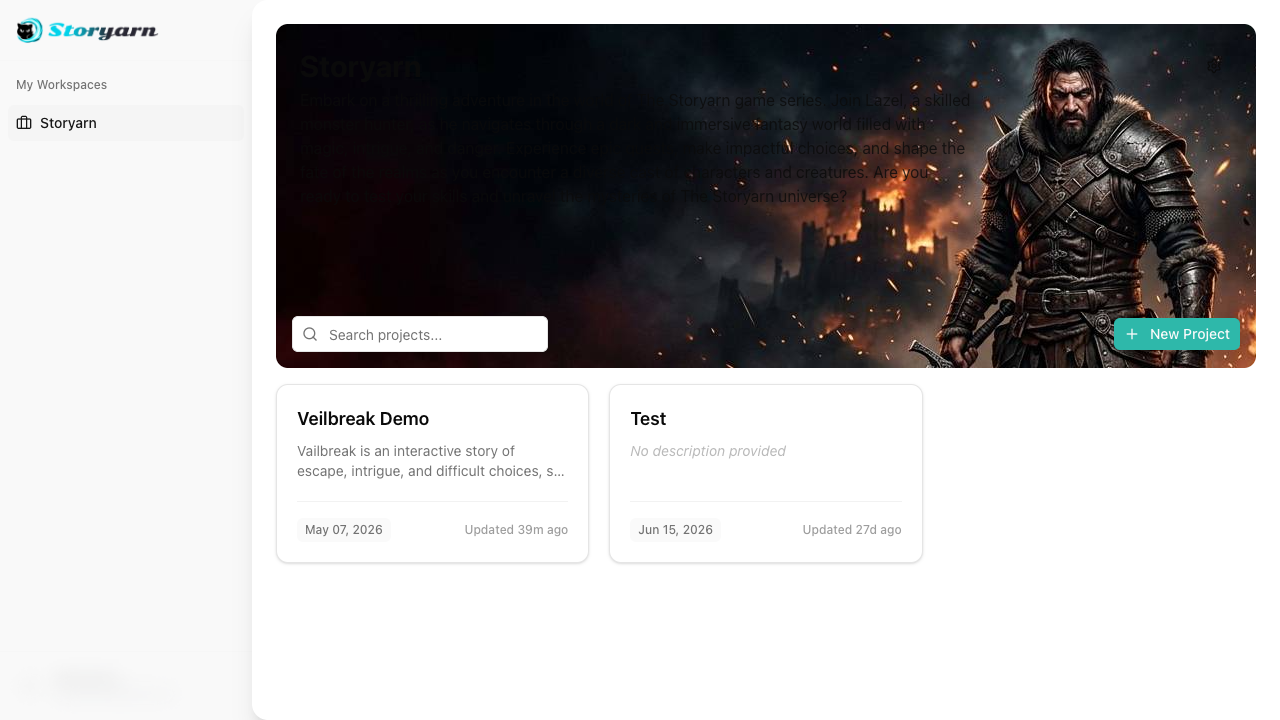
Create a workspace for your team. Every workspace has its own members with role-based access — owners manage everything, admins handle invitations, members create projects, and viewers have read-only access.
Inside a workspace, create a project. Each project is self-contained — its own sheets, flows, scenes, localization, and assets. Projects have their own membership too: owners configure settings, editors create content, viewers review.
Invite teammates by email. They receive a token-based link, accept, and they’re in — with the role you chose.
Define your world with Sheets
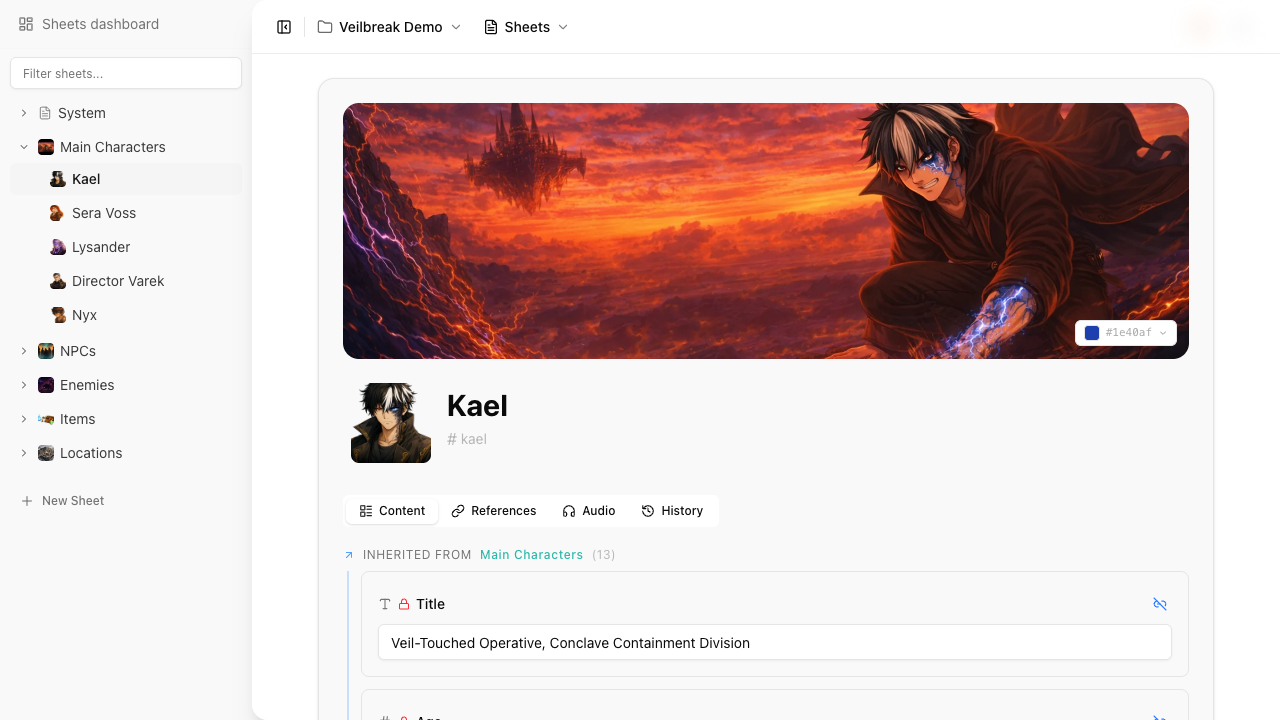
Start with Sheets — structured data containers for your entire game world. Create a sheet for each character, item, location, faction, or quest.
Every field on a sheet is a block. There are 10 block types: text, rich text, number, boolean, select, multi-select, date, table, reference, and gallery. Blocks that support runtime values become variables unless you mark them as constants; reference and gallery blocks are not variables. Table columns also support formulas for computed cell values.
Variables follow the pattern {sheet_shortcut}.{variable_name}. A Health block on the sheet mc.jaime becomes mc.jaime.health. Change that value once, and every flow that checks it sees the update immediately.
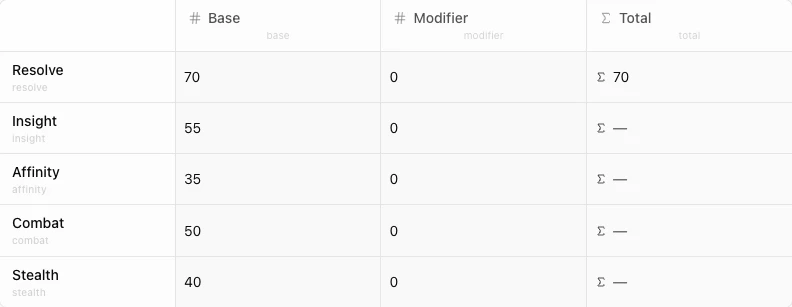
Tables are spreadsheet grids inside a sheet — perfect for inventories, skill trees, or relationship matrices. Each cell becomes its own variable. Formulas let you compute values from other variables, even across sheets.
Organize sheets in a tree hierarchy. Use property inheritance to cascade blocks from parent to child sheets — create a “Character Base” with health, level, and faction, and every child character inherits those fields automatically, each with their own values.
Build branching narratives with Flows
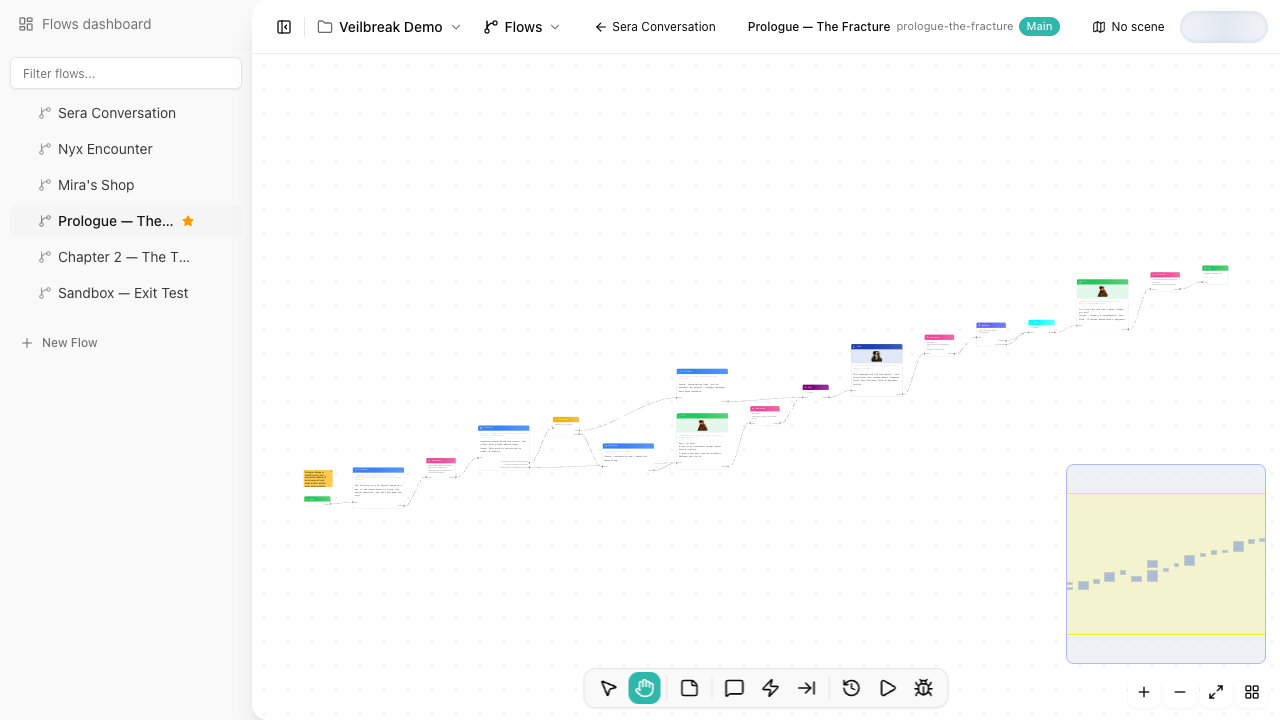
Flows are visual node graphs where your story takes shape. Nine node types cover everything:
- Dialogue — character speech with optional player responses, each with their own conditions and instructions
- Condition — branch based on variable values, built from sentence rows in Builder mode or typed in Code mode
- Instruction — modify variables when the flow passes through
- Hub & Jump — create loops and convergence points for non-linear narratives
- Subflow — embed reusable flows inside others, with a full call stack
- Annotation — leave visual notes on the canvas without affecting execution
- Entry & Exit — define where flows start and end, with exit modes for chaining flows
Connect nodes by dragging between pins. Edit content in the side panel. Collaborate in real time — see your teammates’ cursors, and automatic locking prevents conflicting edits.
Test without leaving the editor
This is where Storyarn pulls ahead. Other tools make you export to a game engine just to see if your dialogue works. Storyarn has two built-in testing tools:
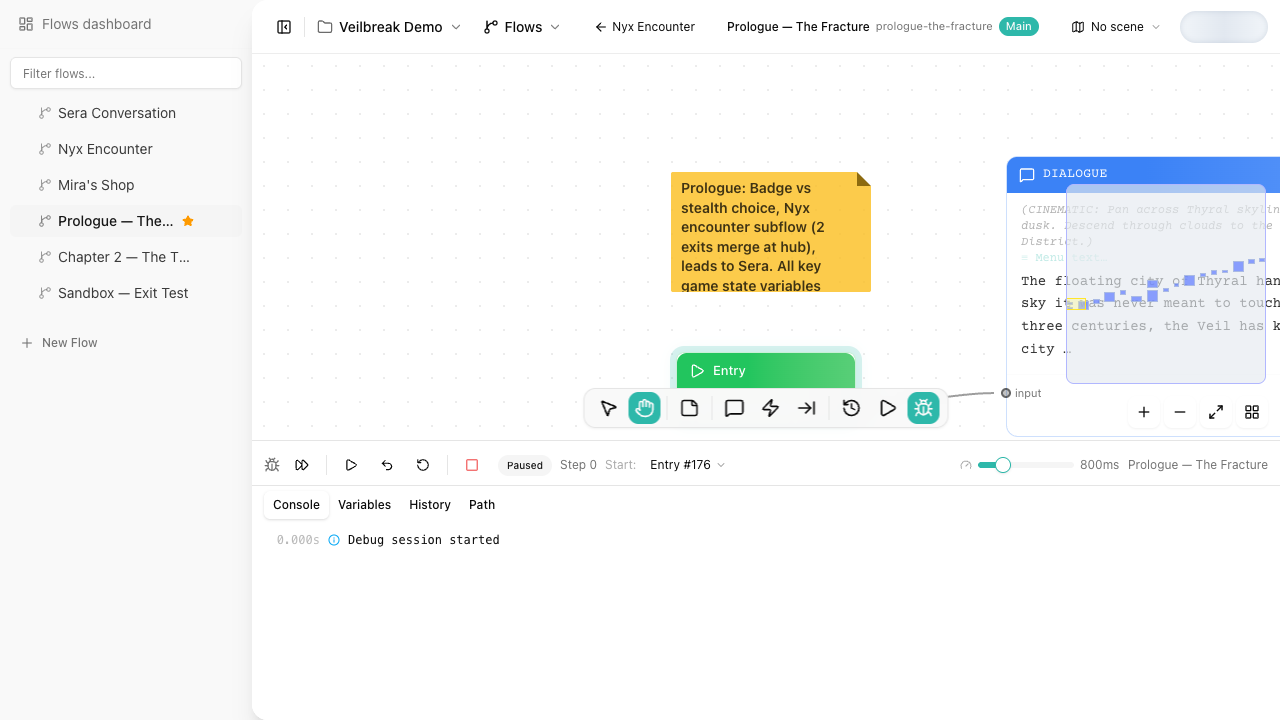
Playback runs in the Sequence editor, above the node canvas. Press Play in the flow toolbar, select a dialogue and play from it: you see its composition, its speaker and the responses whose conditions are met. Playback runs through conditions and instructions and stops at choices. Continue, choose, go back or restart, and pick a content language to check translations. Debug Mode shows the responses whose conditions fail.
The Debug Mode is your step-by-step inspector. Advance node by node, watch variables change in real time in the Variables panel, trace the full execution path, and set breakpoints. Adjust variable values on the fly and re-run to test alternate branches. Five tabs — Console, Variables, History, Path, and Composition — give you complete visibility into what your flow is doing and why.
Map your world with Scenes
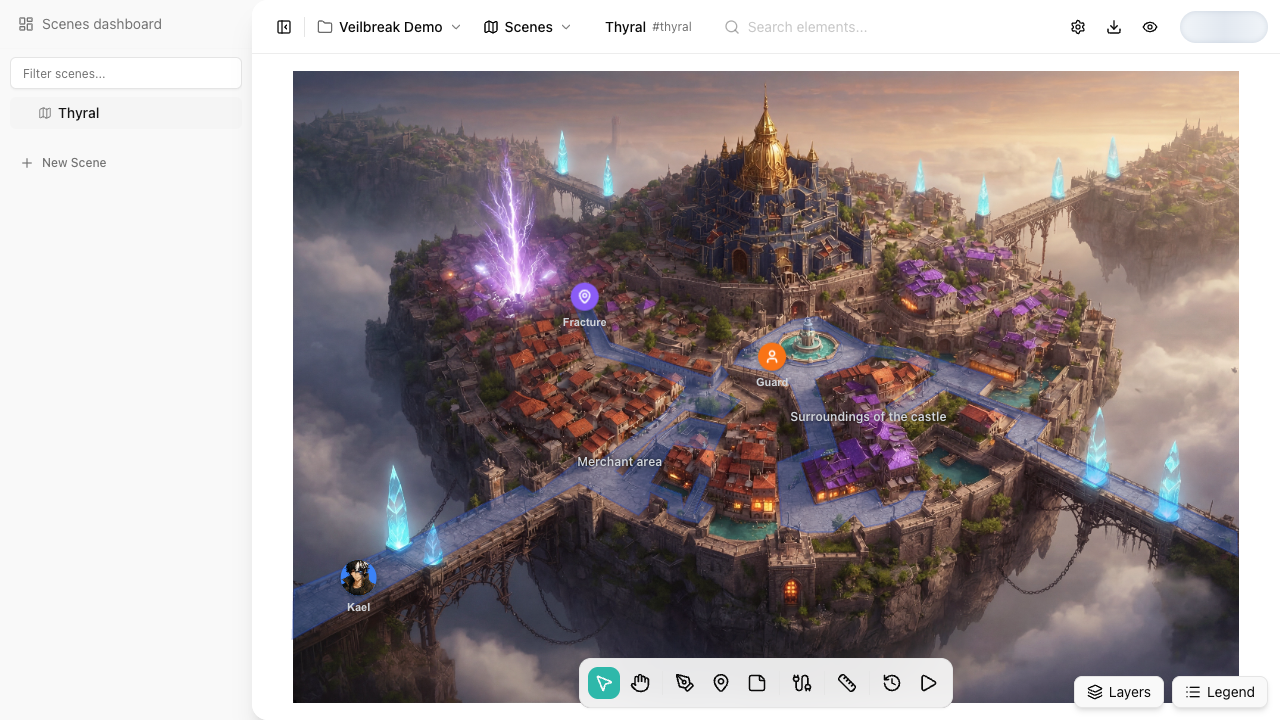
Scenes are interactive maps where your world becomes spatial. Upload a background image, draw polygonal zones for areas, place pins for characters and points of interest, add connections between pins, and annotate with text labels.
Zones and pins aren’t just visual — they’re interactive. Attach conditions to hide or disable elements based on game state. Attach instructions to modify variables when clicked. Link them to flows, sheets, or other scenes.
Double-click a zone to drill down — Storyarn extracts the zone’s area from the background image, creates a child scene, and lets you keep zooming in. Build entire world hierarchies: continent → region → city → building → room.
Exploration Mode
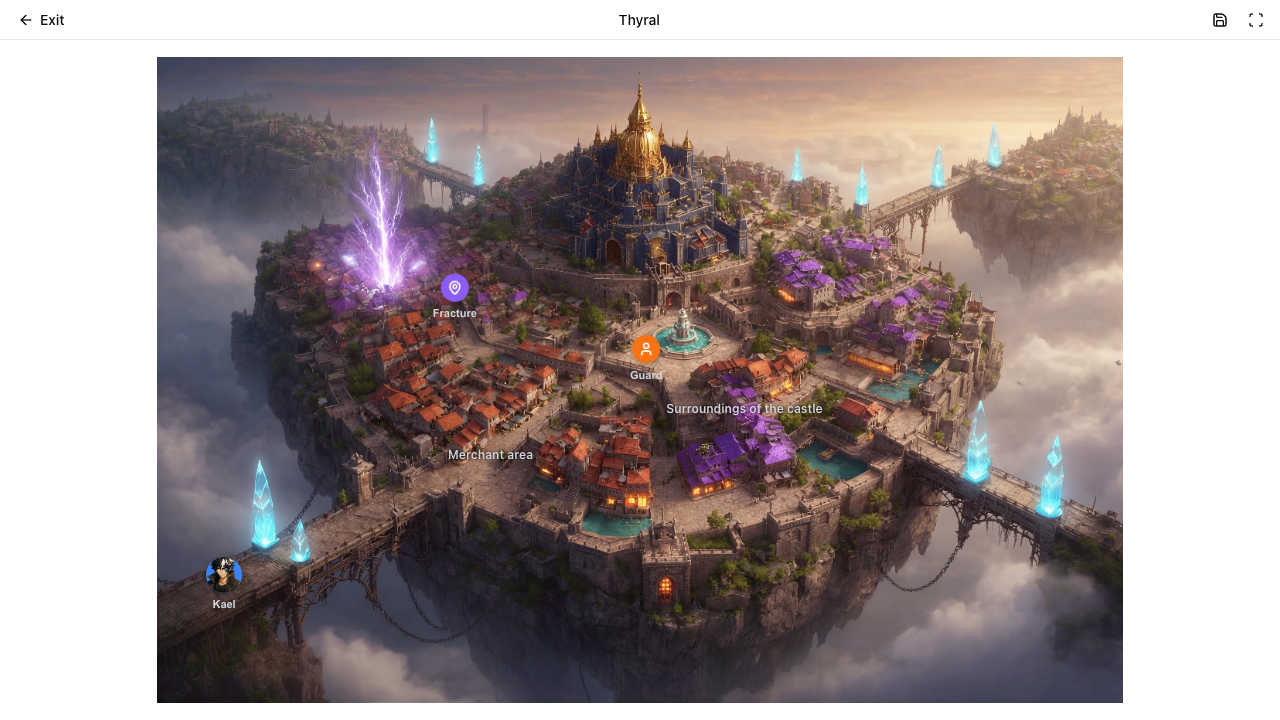
The Exploration Mode is where everything comes together. Walk through your world in an immersive full-screen view. Click zones to trigger flows that overlay on the dimmed map — your art, characters, dialogue, variables, and translations all running in one place. Navigate between scenes, execute variable assignments, and see conditions update zone visibility in real time.
No other narrative design tool does this.
Manage assets
Open Assets from the project sidebar to upload and organize the images and audio used by your project. Search by filename, filter by type, and reuse assets in sheets, scene backgrounds, dialogue staging and voice, and exports.
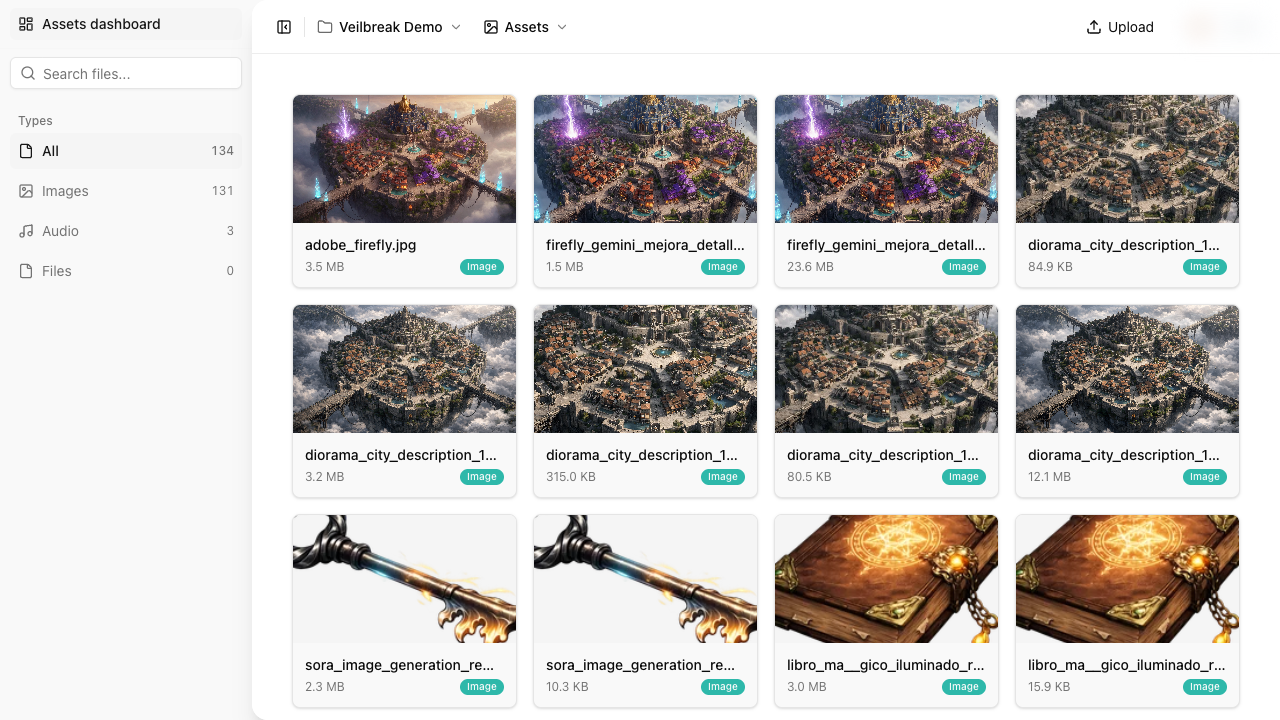
When exporting, choose whether assets remain references, are embedded in the output, or are bundled alongside it.
Localize runtime text
When your content is ready, the Localization tools extract player-facing text from the engine export contract automatically — dialogue lines, stage directions, menu text, response and exit labels, active sheet names, and exported text or rich-text variable values. Scenes and editor-only metadata are excluded.
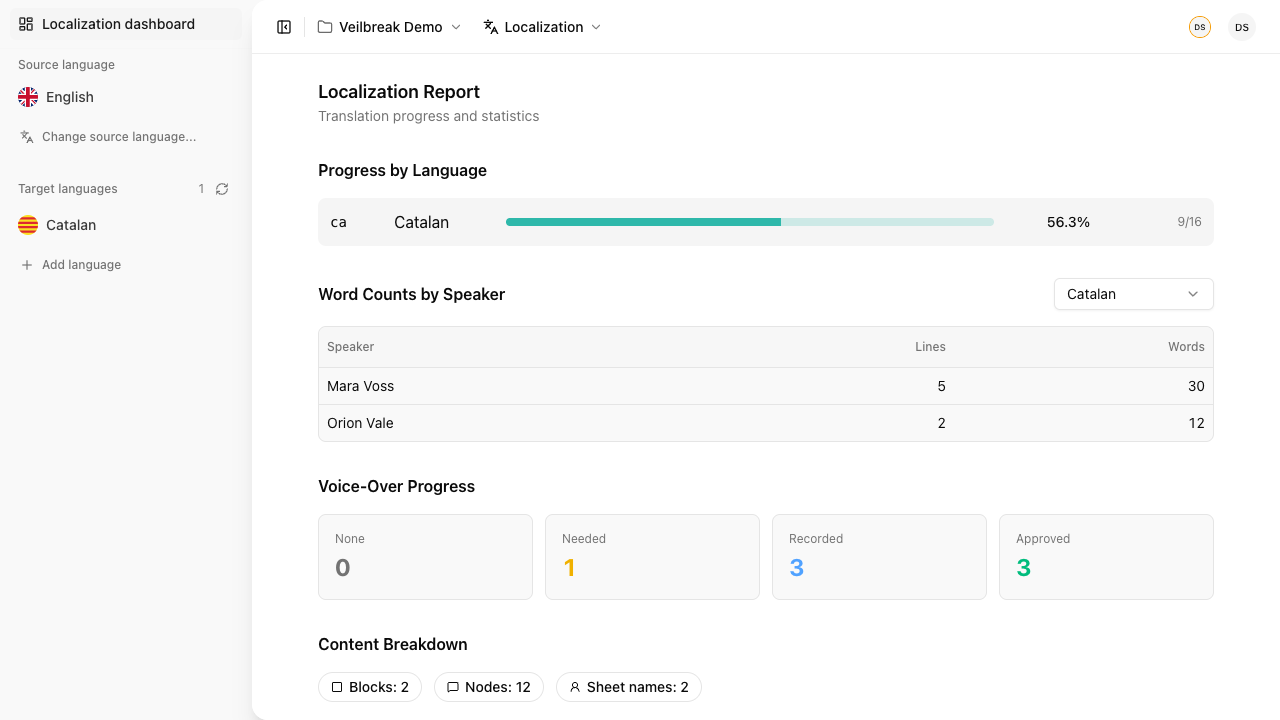
Set up DeepL integration for machine translation as a first pass. Track progress per language with reports that show word counts by speaker, translation status, and voice-over progress.
Export translations as Excel or CSV for professional translators, then import the returned CSV from the same toolbar. Keep the ID and Source Hash columns intact: the system detects source text changes, rejects stale import rows, and flags existing translations for review.
Export and share
When it’s time to ship, export your entire project or individual parts:
- Ink, Yarn, Unity JSON, Godot Dialogic, Unreal CSV, Articy XML — engine-specific formats
- Excel / CSV — localization data
Choose how to handle assets: references only, embedded (Base64), or bundled as a ZIP with an assets folder. Optional pre-export validation catches broken references, unreachable nodes, and missing translations before they reach your engine.
Collaborate in real time
Throughout all of this, your team works together. In the flow editor, see who’s online with presence indicators, watch live cursors as teammates work, and let automatic node locking prevent conflicting edits. Toast notifications keep everyone informed of changes.
Roles keep things organized — editors create content, viewers review without risk of accidental changes, and owners manage the project’s settings, theme, and integrations.