

Brainstorming
Canvas and Notes
Write, shape, connect, and organize notes on the brainstorming canvas, and keep ideas for later without losing them.
The canvas is where a session’s notes live. Notes are short, autosaved contributions that you can place anywhere, connect without imposing a hierarchy, and mark as kept for later or discarded while they stay in view.
Write a note
- Double-click empty canvas, or choose the note tool in the dock and click the canvas, to write a note where you want it. Press N to start one in the middle of the view.
- Notes save automatically as you type. There is no save button.
- Double-click your own note to edit it again. While writing, Cmd/Ctrl+Enter starts another, independent note.
- A note grows with its text. Its author and round appear under it when you hover over it or select it.
A new note belongs to the round whose band you place it in. Rounds are covered in Rounds, Privacy, and Timer.
Shape and color
Select one or more notes to open the selection toolbar. From there you can:
- change the Note shape: plain text, rectangle, ellipse, or diamond;
- change the Note color: yellow, coral, mint, blue, violet, paper, or no color;
- Group the notes, connect them, or propose a decision from them.
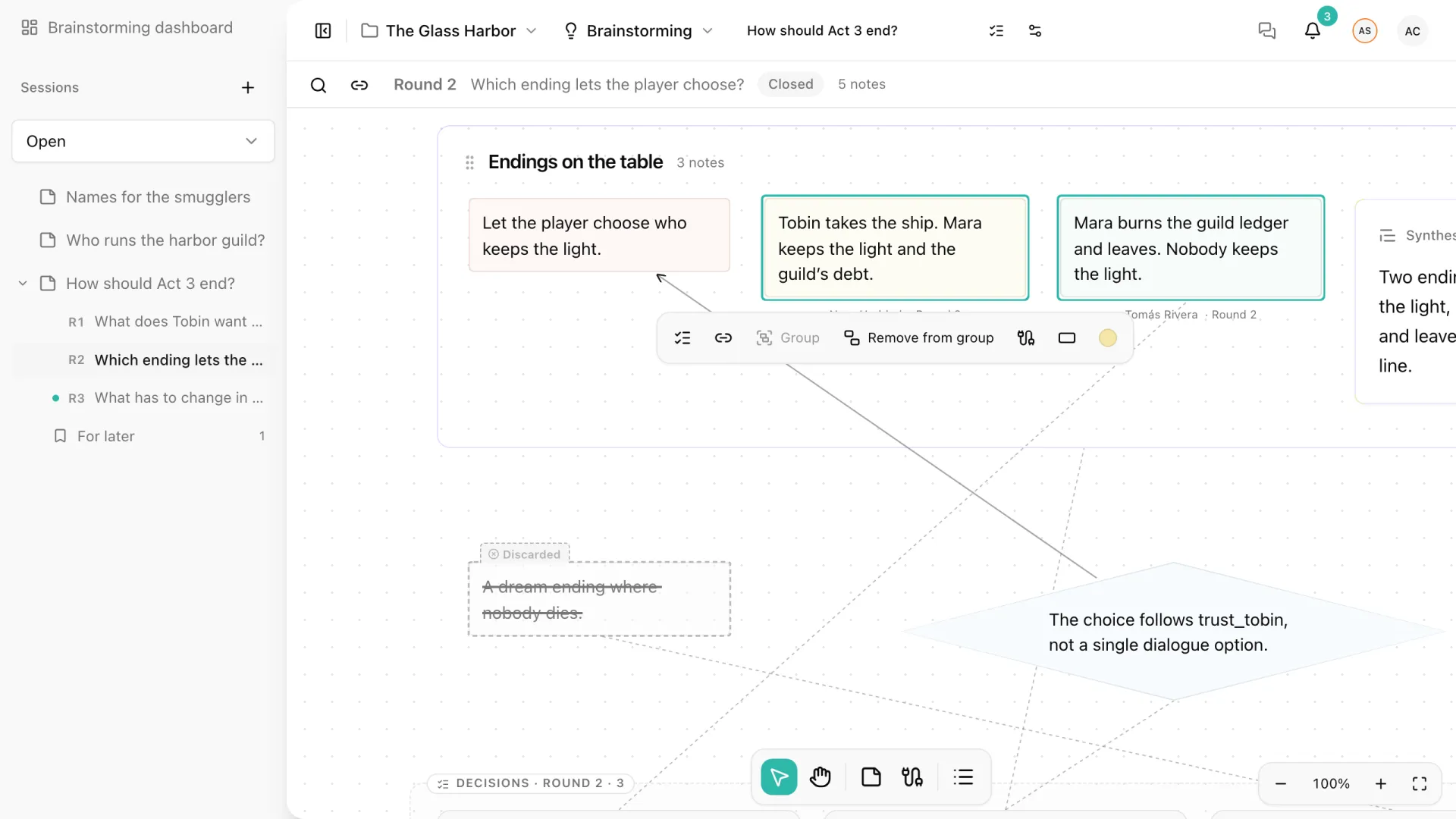
Shapes and colors carry no built-in meaning. Use them for your team’s own conventions, for example diamonds for open questions or coral for player-facing moments. Changing the shape of several notes is a single undo step.
Select, move, and connect
| To… | Do this |
|---|---|
| Select several notes | Shift-click them, or drag a rectangle over empty canvas. Cmd/Ctrl+A selects every visible note. |
| Move notes | Drag them, or use the arrow keys. Hold Shift for bigger steps. |
| Connect notes | Select two or more and press L: the first selected note connects to the others. You can also drag one note onto another. |
| Remove connections | Shift+L removes the connections between the selected notes. |
| Change a connection | Click it to choose a plain line, an arrow in either direction, or arrows at both ends. Delete removes it. |
| Add a connected note | Alt/Option+Shift+Arrow creates a note in that direction, connected from every selected note. |
| Duplicate, cut, copy, and paste | Cmd/Ctrl+D, Cmd/Ctrl+X, Cmd/Ctrl+C, and Cmd/Ctrl+V. Copies keep their content and look, and become your notes. |
With nothing selected, L switches to the connection tool, which shows a line from the pointer to the notes you can reach. Connections can link notes from different rounds.
Pan and zoom
Hold Space and drag, or use the hand tool, to move around. The mouse wheel pans; Ctrl/Cmd+wheel zooms around the pointer. Press 1 to fit every note on screen, or use the zoom controls in the corner.
Keep for later, discard, or delete
Right-click a note to open its menu.
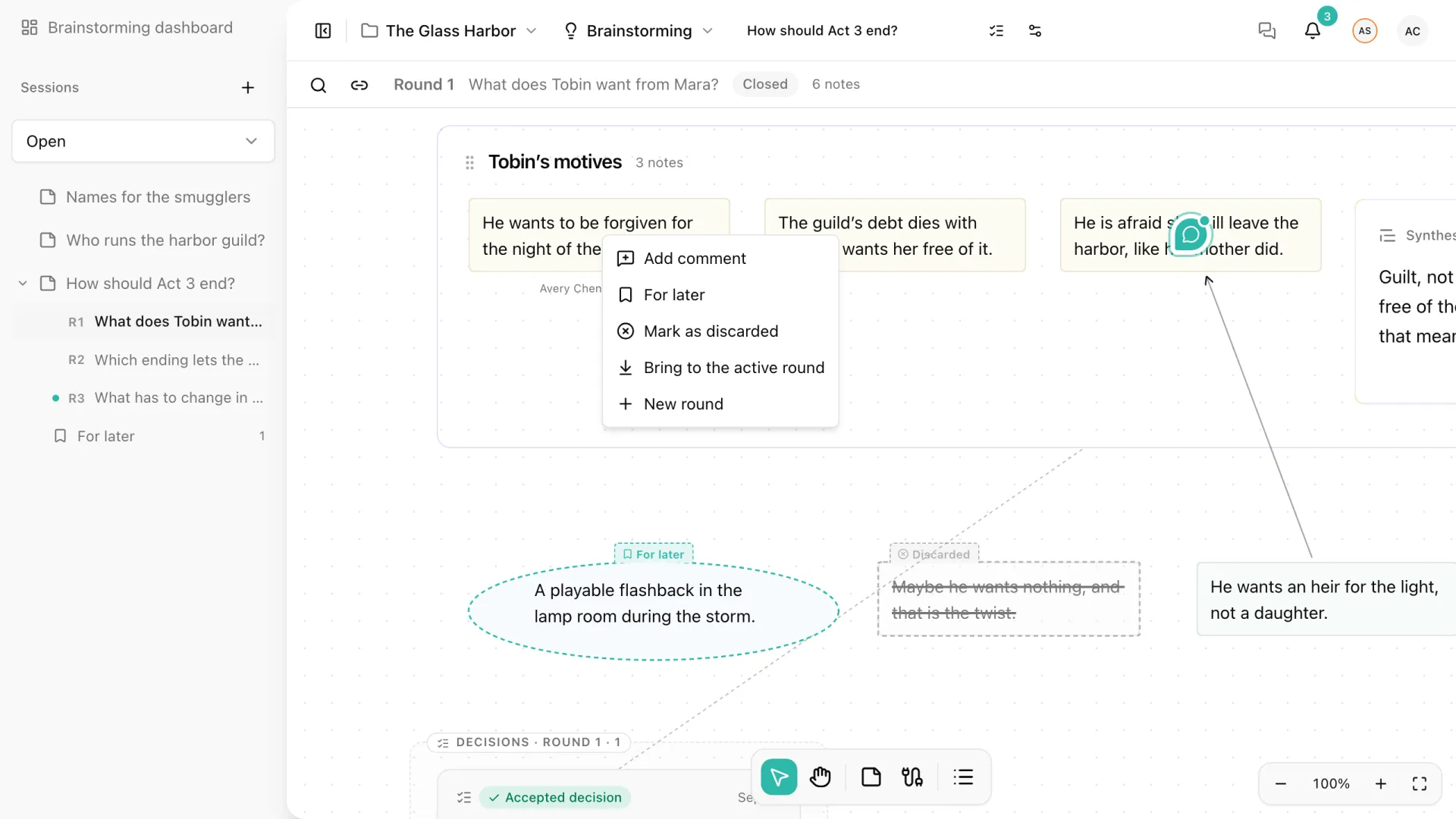
- For later keeps a promising idea visible but parked. The note gets a “For later” tab and a dashed outline, and appears in the For later list in the sidebar.
- Mark as discarded keeps the idea on the canvas, faded and struck through, so the team remembers it was considered.
- Bring back returns a parked or discarded note to active.
To delete a note, select it and press Delete or Backspace outside the text editor. Deleting removes the note from the canvas, the list, and search; use it for mistakes, not for ideas you ruled out. Undo brings it back.
Only the author of a note can edit its text, change its state, or delete it. Other editors can still move it, connect it, and group it.
Bring an idea into the current round
A note never changes round. When an idea from an earlier round deserves another look, choose Bring to the active round from its menu or from the For later list. Storyarn creates a copy under the round in progress, as your note, linked to the original. The original stays where it was, so the earlier round still shows what was said at the time.
Talk about a note
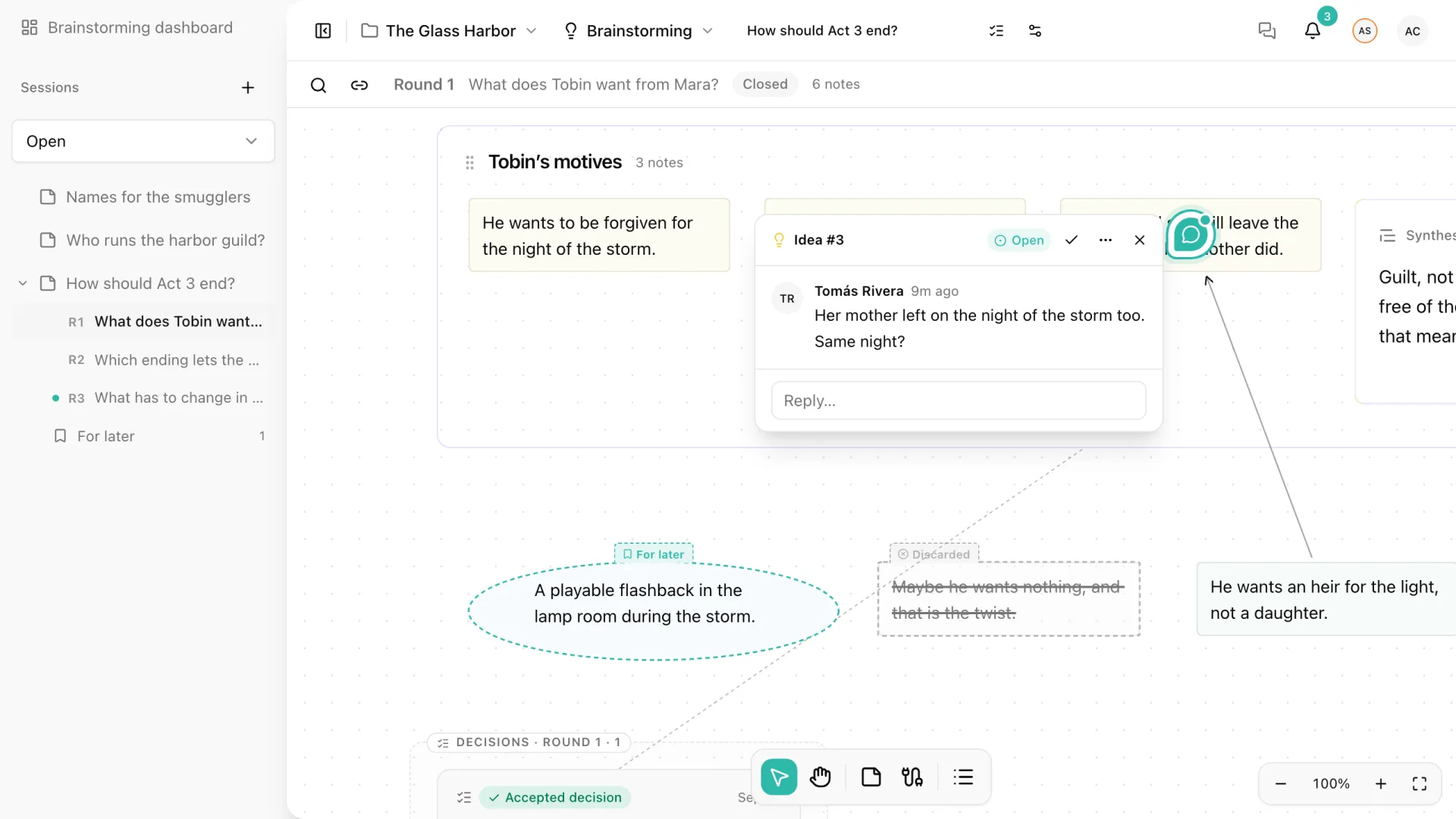
Add comment in a note’s menu starts a conversation anchored to that note. Mention teammates with @, reply in the thread, and resolve it when the question is settled. Notes with a conversation show a comment badge.
List view and search
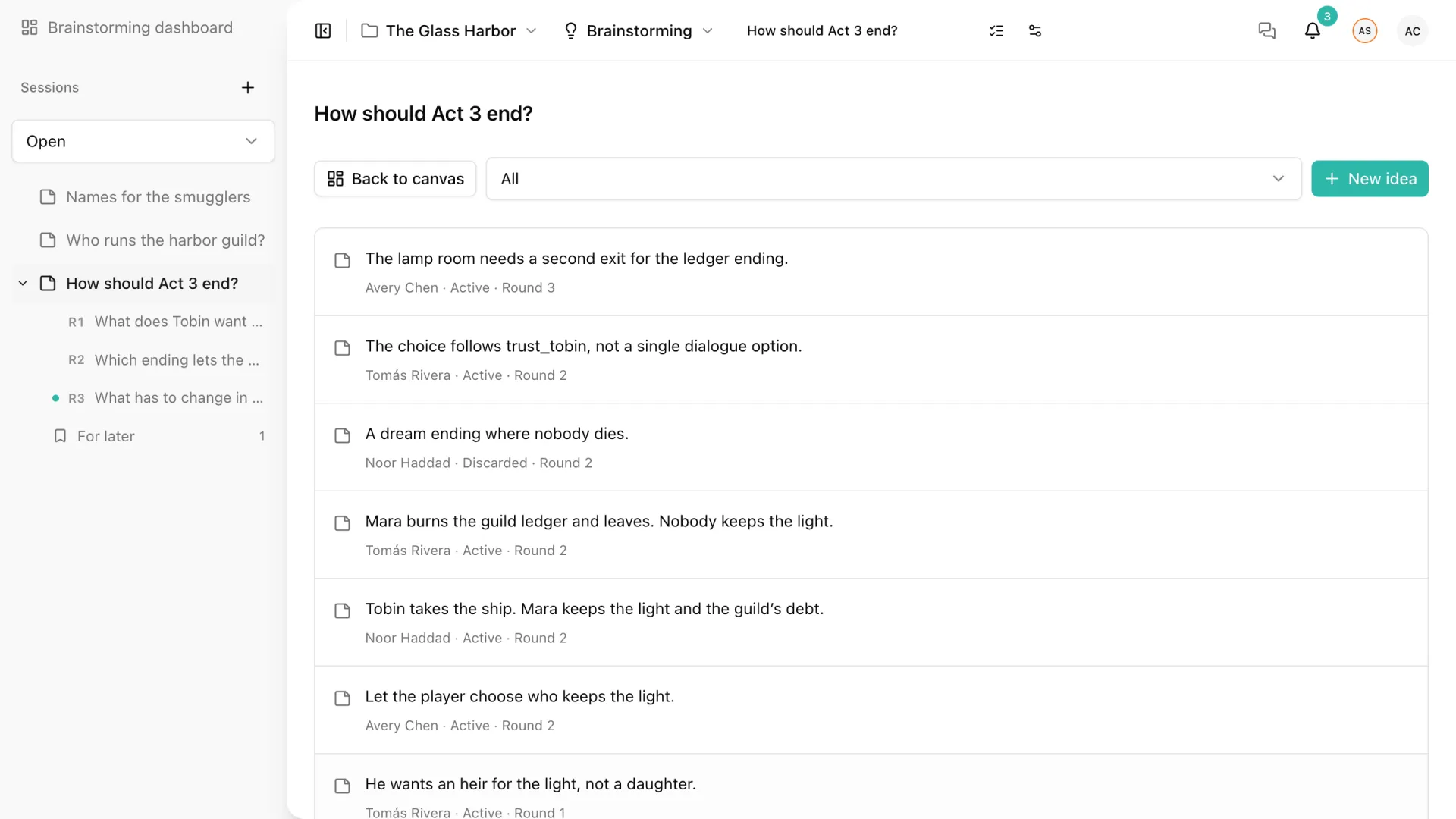
The list icon at the end of the dock switches to a list of every note you can read, with its author, state, and round. Filter it by All, Active, For later, or Discarded, and add a note with New idea. Back to canvas returns to the board with your drafts and undo history intact.
The magnifying glass in the top-left corner of the canvas searches the notes you can read and centers the canvas on the one you pick.
Undo and redo
Cmd/Ctrl+Z undoes your own last action and Cmd/Ctrl+Shift+Z redoes it (Ctrl+Y also works on Windows and Linux). Undo covers text edits, moves, colors, shapes, states, connections, creation, and deletion, up to 50 steps. It never undoes someone else’s work, and the history is local to your browser tab.
Keyboard shortcuts
| Shortcut | Action |
|---|---|
| N | New note |
| L / Shift+L | Connect the selection / remove its connections |
| Alt/Option+Shift+Arrow | New connected note in that direction |
| Cmd/Ctrl+D | Duplicate |
| Cmd/Ctrl+A | Select every visible note |
| 1 | Fit notes on screen |
| Space + drag | Pan |
| Delete / Backspace | Delete the selection |
| Cmd/Ctrl+Z | Undo |
| Cmd/Ctrl+Shift+Z | Redo |
| Escape | Cancel the current gesture |
Canvas shortcuts never interfere with typing: while you write in a note or a field, the keys go to the text.