

Import and Export
Import and Export
Move narrative projects between Yarn Spinner, Storyarn, and major game engines.
Storyarn can import an existing Yarn Spinner project and export narrative content to 6 formats covering major game engines and dialogue systems.
Import from Yarn Spinner
Open Project settings > Import & Export and upload either one .yarn source file or a .zip containing the project’s .yarn sources. Storyarn validates and previews the package before it changes project content. The default conflict policy keeps both versions by renaming imported content; you can instead keep the existing version and skip the conflicting import. Additive overwrite is unavailable when shortcuts conflict because Storyarn cannot safely relink references from existing content.
The importer converts:
- Yarn nodes into Storyarn Flows.
- Dialogue and nested options into dialogue nodes with embedded responses.
if,elseif, andelsebranches into Storyarn conditions when every expression has a safe Storyarn equivalent.- Literal variable declarations, supported assignments, and interpolations into a generated Yarn Variables sheet and Storyarn expressions.
jump,detour,return, andstopcommands into the corresponding flow control nodes.- Speaker prefixes such as
Guide: Welcomeinto character sheets when they can be inferred safely. - Yarn line IDs into Storyarn localization IDs.
The exact, case-sensitive Yarn node title Start is the only imported main-flow candidate. An additive import keeps the project’s current main flow; if the project has none, Start becomes main when that node is actually imported (the skip strategy can omit a conflicting Start). Any additive conflict submitted with the overwrite strategy is rejected before project content is changed. A whole-project replacement evaluates the main-flow rule after removing the old narrative graph, so Start becomes main when present and no flow is chosen by file order when it is absent. The preview shows the expected outcome from the current project state; Storyarn checks the rule again under the project lock when the background import runs.
Custom side-effect commands that do not have a Storyarn equivalent are retained as visible annotation nodes and listed as warnings in the preview. Logic that controls branching or state is handled more strictly: if a condition, Smart Variable, assignment, or control-flow target cannot be reproduced safely, validation rejects the import before any plan or project content is stored.
Safe import workflow
- Select a
.yarnor.zipfile. The maximum upload size is 50 MB. - Click Validate and preview. ZIP paths, entry count, expanded size, compression ratio, text encoding, and individual file sizes are checked before extraction.
- Review entity counts, shortcut conflicts, and compatibility warnings.
- Keep the default Add to this project mode, or choose Replace narrative content when the ZIP contains exactly one valid
.yarnprojectfile. - For an additive import with conflicts, choose Keep existing content; skip conflicting imports or Keep both by renaming imported content, then start the import. Replace existing content with conflicting imports remains disabled because it cannot preserve existing references safely.
- The encrypted import plan runs in the background. You can leave the page and return after it completes.
Only project owners can prepare or execute an import. Storyarn checks that permission again in the background job. Failed imports use a database transaction, so partial project content is not retained.
Replacing an existing project
Whole-project replacement is offered only for an explicit Yarn project ZIP with one valid .yarnproject file. A standalone .yarn file or an implicit-project ZIP can still be added, but cannot replace the current project.
Before replacement, Storyarn creates a normal, visible full-project snapshot and waits until it is verified and recoverable. Nothing is changed while that snapshot is being built. Storyarn then checks that the project still exactly matches the snapshot and, in one database transaction, moves the active Sheets, Flows, Scenes, and localization languages and texts to recoverable trash or archive before importing the Yarn project. Existing assets, project settings, members, snapshots, glossary entries, prior trash, and entity version history are preserved. If the snapshot fails, recovery is unavailable, the project changes after capture, or materialization fails, the replacement stops without retaining partial changes. The recovery snapshot is retained after a successful replacement; failed, cancelled, or expired replacements remove their unused snapshot through durable background cleanup.
Current Yarn import boundaries
- Yarn localization string-table CSV files are not imported yet. Source line IDs are preserved so translations can be connected in a later workflow.
- Custom side-effect commands are imported as annotations for manual review. Unsupported dynamic interpolation, Yarn markup and non-line-ID tags remain visible in the imported text and are flagged for review. Custom functions used in conditions, Yarn 3 Smart Variables, assignments to undeclared variables, and other unsupported state or control-flow expressions block the import instead of being weakened or discarded.
- Every variable used in a condition or assignment must be declared explicitly with
<<declare ...>>. Legacy compound assignments such as<<set $score += 1>>are rejected; write the equivalent<<set $score to $score + 1>>instead. - Yarn 3 line groups, node groups and storylet
whenclauses are not converted yet. Files that use them are rejected because flattening their selection rules would change which dialogue is shown. Statefulonceblocks are rejected for the same reason. - Imported speaker sheets contain the inferred name only; enrich them with your project-specific schema after import. Dynamic speaker expressions remain in the dialogue text and are flagged for review instead of being linked to a character sheet.
- Images, audio, Unity assets, Godot resources, and compiled Yarn bytecode are not imported.
- Replace mode requires enough workspace storage for Storyarn to create and verify the full-project recovery snapshot. If that recovery point cannot be completed, the existing project remains intact.
Export formats
| Format | Extension | Engine / Tool | Content supported |
|---|---|---|---|
| Ink | .ink | Inkle’s Ink runtime | Flows, Sheets, Localization |
| Yarn Spinner | .yarn | Yarn Spinner (Unity, Godot) | Flows, Sheets, Localization |
| Unity Dialogue System (beta) | .json | Unity (Pixel Crushers) | Flows, Sheets, Localization |
| Godot Dialogic | .dtl | Godot 4 Dialogic plugin | Flows, Sheets, Localization |
| Unreal Engine (beta) | .csv | Unreal Engine (Data Tables) | Flows, Sheets, Localization |
| articy:draft (beta) | .xml | articy:draft-style XML | Flows, Sheets, Localization |
The Unity Dialogue System, Unreal Engine, and articy:draft exports are in beta, and the export page marks them with a Beta badge.
The articy:draft export follows its XML export structure. It is not a native articy:draft project and cannot be opened as one.
These formats export dialogue, branching, variable state, and localized text. When Localization is selected, Unity includes it in the dialogue database; the other formats provide separate localization catalogs alongside the narrative files.
None of these formats exports Scenes or the visual and audio composition configured in Sequence. Those parts need their own implementation in the game engine. Pre-export validation warns when Sequence composition will be omitted; a full-project snapshot preserves that content inside Storyarn.
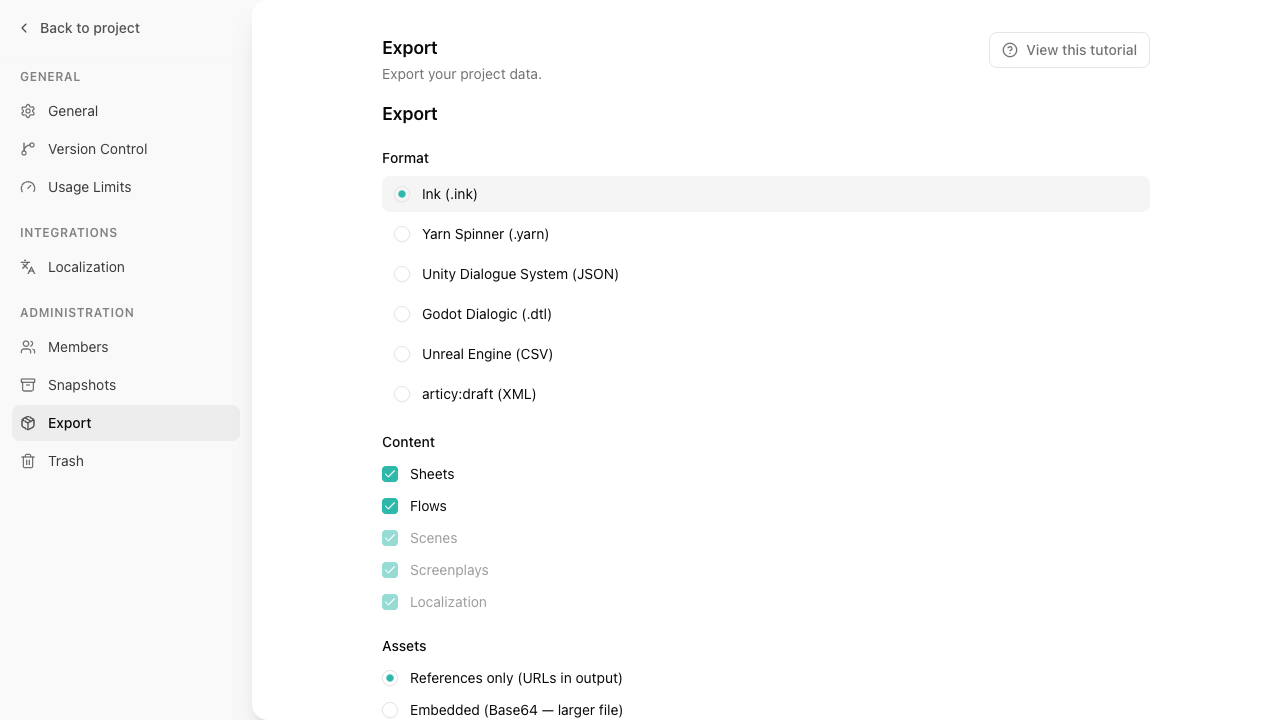
How to export
- Navigate to Import & Export from your project sidebar.
- Choose a format – Select from the available formats. The content checkboxes update to show which sections that format supports.
- Select content sections – Check or uncheck Sheets, Flows, Scenes, and Localization. Sections not supported by the selected format are disabled.
- Choose asset mode – Control how asset files (images, audio) are handled:
| Asset mode | Behavior |
|---|---|
| References only | Asset URLs are included in the output (default, smallest file) |
| Embedded | Assets are Base64-encoded inline (larger file, fully self-contained) |
| Bundled | Output is a ZIP file with an assets folder alongside the data file |
- Set options – Toggle “Validate before export” and “Pretty print output” as needed.
- Download – Click the download button to get your file.
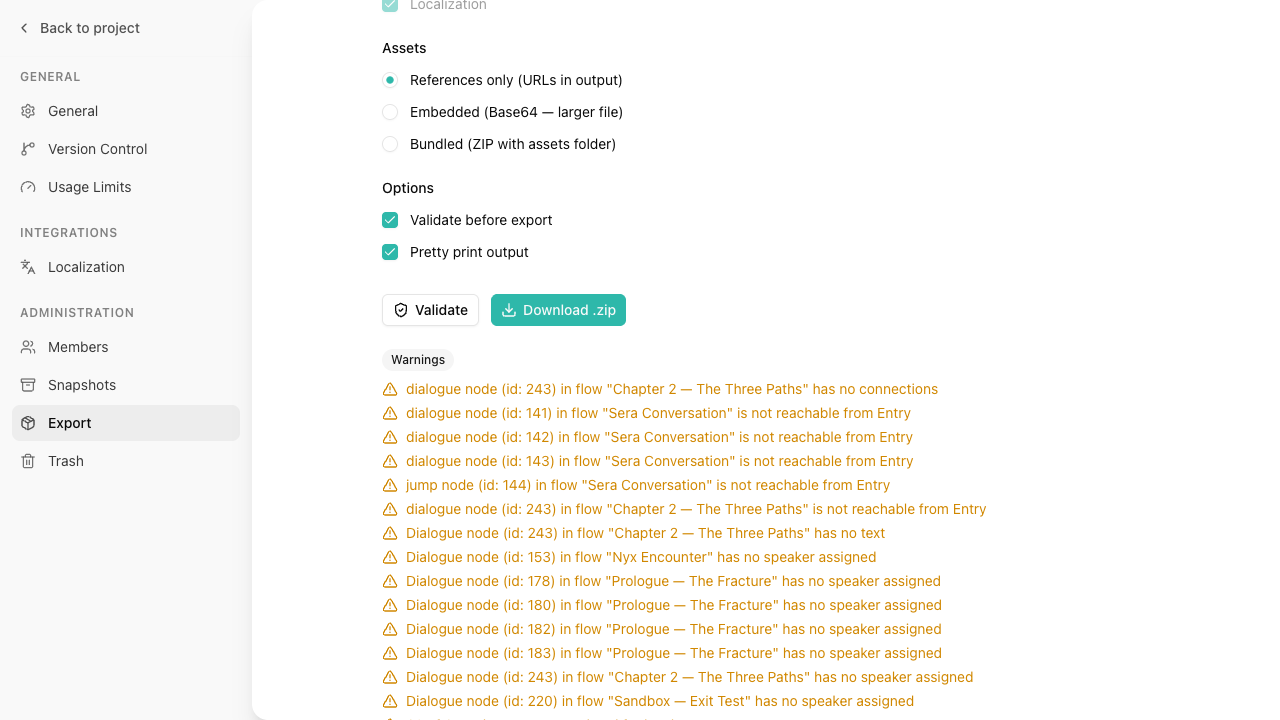
Pre-export validation
Before downloading, you can run validation to catch issues that would cause problems in your game. Click Validate to check your project. The validator runs 9 checks and reports findings at three severity levels:
Errors (will likely break your game):
- Flows missing an Entry node
- Broken references: jump nodes pointing to non-existent hubs and subflow nodes referencing deleted flows
Warnings (potential issues):
- Orphan nodes with no connections
- Unreachable nodes (not reachable from Entry via BFS traversal)
- Empty dialogue nodes (no text content)
- Dialogue nodes with no speaker assigned
- Circular subflow reference chains (A references B references A)
- Missing translations for configured languages
Info (worth knowing):
- Orphan sheets with no references from any flow or scene
Other export paths
Beyond the main Import & Export page, Storyarn offers specialized exchange features in other areas:
Localization exchange – From the Localization page, export translations as Excel (.xlsx) or CSV filtered by language. For an editable round trip, choose CSV, keep the exported ID and Source Hash columns unchanged, then use Import CSV to apply returned Translation and Status values. Excel exports are currently export-only. Source hashes prevent stale files from overwriting translations after source content changes. See the Localization Overview for details.