

Narrative Design
Dialogue Nodes
Character speech, player responses, and dialogue configuration.
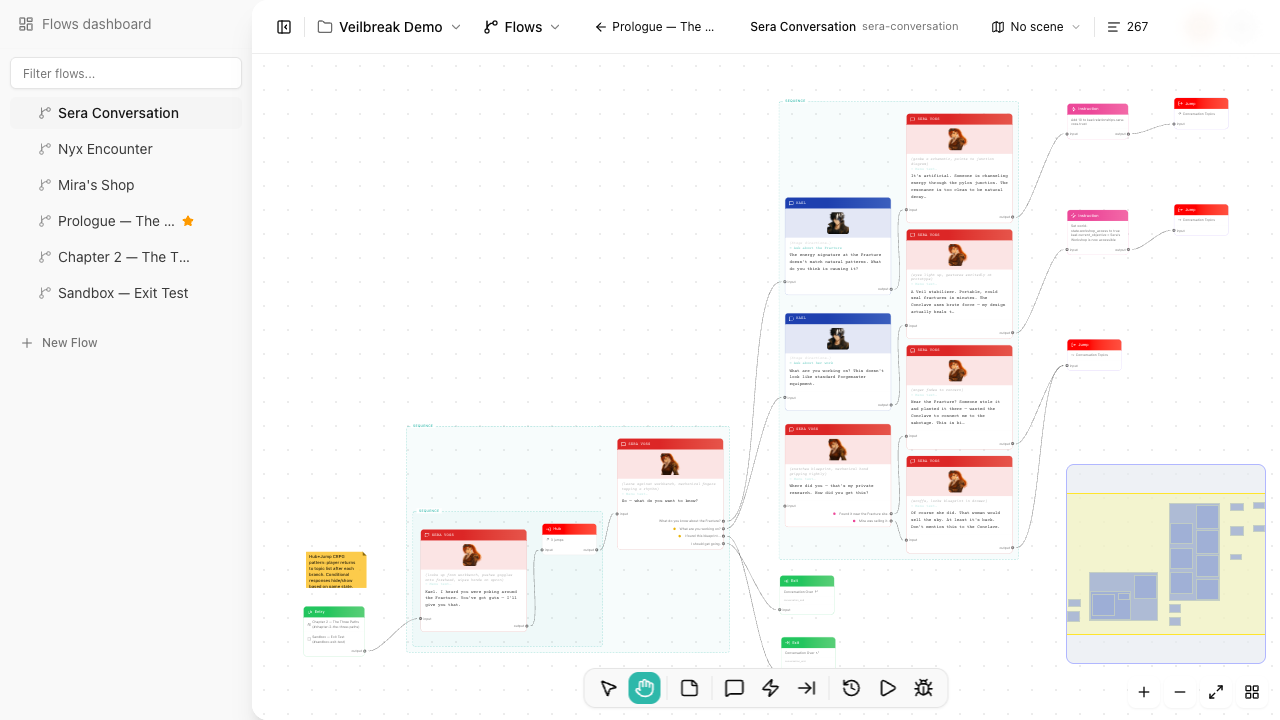
Dialogue nodes are the most common node type. They represent what a character says and optionally what the player can respond. Each dialogue node can be as simple as a single line of text or as rich as a fully configured narrative beat with speaker, stage directions, audio, and branching responses.
Writing dialogue
Select a dialogue node to open the side panel. You will find the following fields:
- Speaker – link to a character sheet from your project. The character’s name and avatar appear on the node in the canvas, and the speaker context is used for localization extraction and reports.
- Text – the dialogue line itself. This is a rich text field with formatting (bold, italic, underline, strikethrough, links). Supports character mention variables for dynamic text.
- Stage Directions – optional acting or staging notes that accompany the line (e.g., “sighs heavily”, “turns to face the window”). These give translators and reviewers extra context.
- Menu Text – a shorter version of the line for choice menus, used when the full dialogue text is too long to display as a player option.
Focused dialogue editor
Double-click a dialogue node (or click the settings button in the toolbar) to open the focused dialogue editor – a full-screen writing mode that shows all dialogue fields in a focused layout. This is the fastest way to write and edit dialogue content without the distraction of the canvas.
Audio and technical fields
- Audio – attach an audio asset for voiceover. When an audio file is linked, an audio indicator icon appears on the node in the canvas.
- Technical ID – a unique identifier for engine integration. Click the generate button in the toolbar to auto-generate one based on the flow shortcut, speaker name, and node position (e.g.,
tavern_quest_bartender_3). You can also type a custom ID. - Localization ID – auto-generated when the node is created. Used by the localization system to track and extract translatable text.
Image override
If the speaker’s character sheet has a gallery with images, an image picker appears in the toolbar. You can select an image to override the default speaker portrait for this specific dialogue line – useful for showing different expressions or poses.
Player responses
A dialogue node can have multiple responses – the choices a player makes. Each response gets its own text and its own output pin on the node, so you can connect different responses to different paths in the flow.
Click Add response to create a new response. The order you define them is the order they appear in playback and in Debug Mode.
When a dialogue node has no responses, it acts as a simple line of dialogue with a single output pin. The first time you add a response, the existing output connection is automatically migrated to the new response pin.
Response conditions
Each response can have a condition that must be true for it to appear as a valid choice. Conditions use the shared Condition Editor, with both Builder mode and Code mode.
Example: “[Strength > 15] Break down the door” If the player’s strength is 15 or less, this option does not appear in playback, and appears greyed out and disabled in Debug Mode.
A condition indicator appears on the response in the canvas, so you can see at a glance which responses have conditions attached.
If no response’s condition is met, nothing can follow the line. Play, a dialogue in exploration and Debug Mode stop there and say why, and an ambient flow in a scene ends; none of them picks a response for you. Keep one response without a condition, or make is true the only rule of one response and is false the only rule of another, on the same boolean (plus a response with only is not set when it is tri-state). Flow health warns about a dialogue whose responses all have a condition.
Response instructions
Each response can also carry instructions that modify variables when that response is chosen. These use the shared Instruction Editor, supporting all assignment operations: Set, Add, Subtract, Toggle, Set true/false, and Clear.
Example: Player picks “Accept the quest” -> sets
quest.tavern.acceptedto true
This keeps simple logic close to the dialogue without needing a separate instruction node after each response branch. For complex cases with multiple variable changes or shared logic, use a dedicated instruction node instead.
Speaker assignment
Linking a dialogue node to a character sheet provides several benefits:
- The character’s name and avatar appear on the node in the canvas, making it easy to identify who is speaking at a glance
- Localization extraction includes speaker context, so translators know which character is speaking
- Exports and reports can attribute lines to the right characters
- Technical ID generation includes the speaker name for meaningful identifiers
- You can track which characters appear in which flows across your project
To assign a speaker, select a sheet from the speaker dropdown in the side panel or toolbar. Any sheet in your project can be used as a speaker – character sheets, NPC sheets, or any entity you want to associate with dialogue.
Quick preview
Click Preview in the dialogue node’s toolbar to walk through the exchange from that node: continue or choose a response to follow your connections to the next dialogue. The preview does not evaluate conditions or change variables. To play the flow as the player experiences it, use Play in the Sequence editor.