

Quick Start
Your First Sheet
Create a character sheet and understand how variables work.
Sheets are the data backbone of your project. Every field you add to a sheet can become a variable that your flows read and modify at runtime. In this step, you will create the character data that the next guide uses to branch dialogue.
Create the sheet
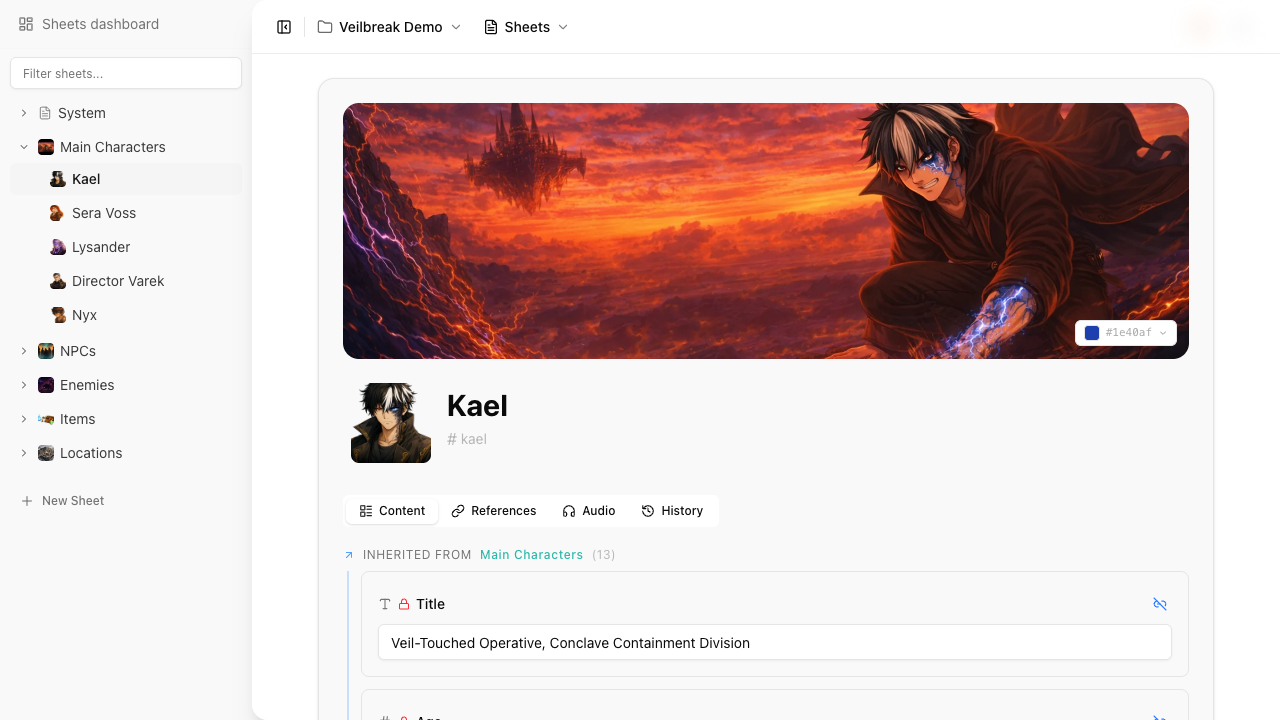
Open your project and select Sheets in the sidebar. Click the New Sheet button at the top of the sheet tree.
A new sheet is created with a default name. Click on the title to rename it – for example, “Jaime”. The shortcut (shown below the name) auto-generates from the sheet name. You can edit it manually – for a character, something like mc.jaime works well because it creates a readable namespace for all variables on this sheet.
Add blocks
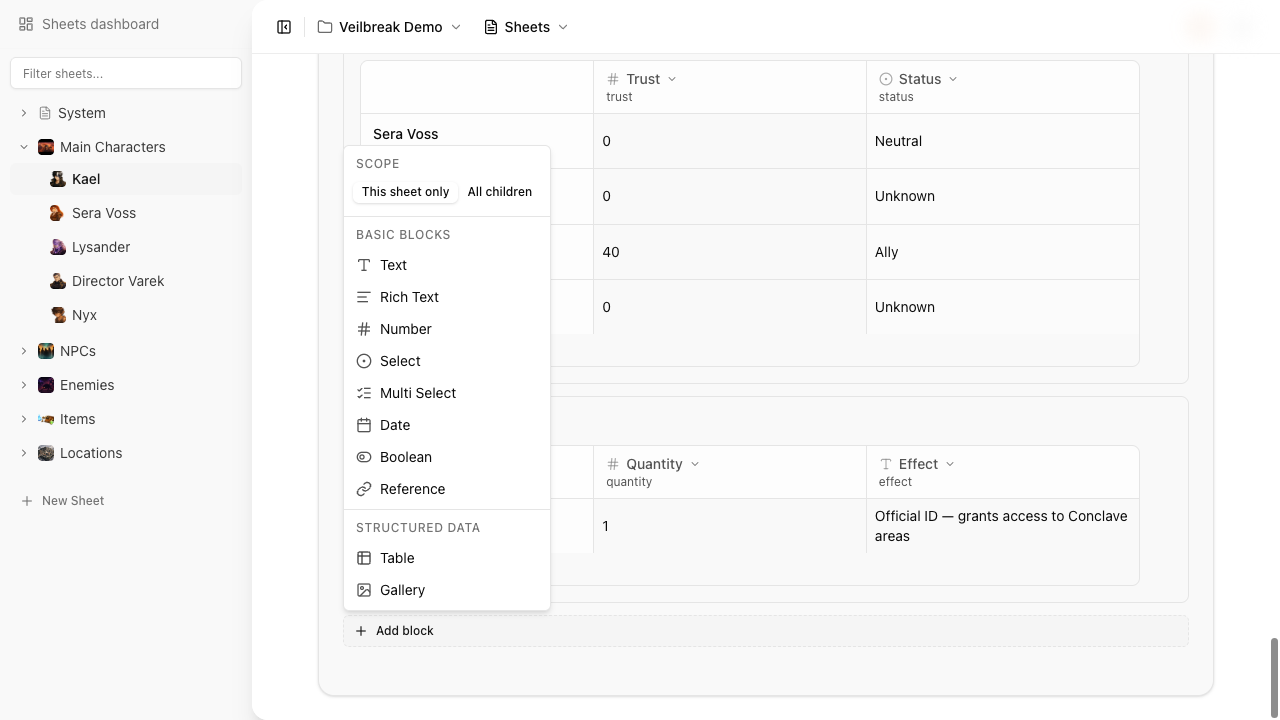
Click the + button at the bottom of the sheet to open the block menu. Blocks are organized into two categories:
Basic Blocks – Text, Rich Text, Number, Select, Multi Select, Date, Boolean, Reference
Structured Data – Table, Gallery
Try adding these blocks to your character sheet:
Choose Number and label it “Health”. Set the default value to
100. This creates the variablemc.jaime.health.Choose Select and label it “Class”. Add options like Warrior, Mage, and Rogue using the block’s config popover. This creates
mc.jaime.class.Choose Boolean and label it “Is Alive”. Toggle it on. This creates
mc.jaime.is_alive.
Constants vs. variables
By default, every block becomes a variable – except for Reference and Gallery blocks, which never expose variables.
If you want a block to hold display-only data that flows cannot read, mark it as a constant in the block’s config popover. Constants are useful for labels, descriptions, or lore text that does not need to participate in game logic.
How variables work
Every non-constant block becomes a variable with the format {sheet_shortcut}.{variable_name}:
| Block | Variable | Type |
|---|---|---|
| Health | mc.jaime.health | number |
| Class | mc.jaime.class | select |
| Is Alive | mc.jaime.is_alive | boolean |
The variable name auto-generates from the block label (lowercased, spaces become underscores). You can customize it in the block’s advanced config.
Checkpoint
Before moving on, confirm that your sheet has:
- A shortcut of
mc.jaime - A number block named Health with the value
100 - The variable
mc.jaime.healthvisible in the block configuration
In the next guide, you will use mc.jaime.health to create branching dialogue in a flow, preview it as a player, and export the project.